How it works
Compose, refine, export.
Three steps from a sentence to a production-ready email.
2 reviews on Product HuntTestimonials
The same three steps, from the other side.
Pushed a welcome sequence into Mailchimp in about two minutes and every block looked properly dark-mode safe, which is more than I can say for most generators I’ve tried.
Love that it spits out native blocks for each ESP instead of forcing you to rebuild everything in the editor. The Universal export alone is a quiet lifesaver for anyone juggling multiple platforms.
How AI email templates work, in four steps. Set up once, compose every email.
-
Set up.
Save your brand kit once — every email after uses it.
Add what makes your sends look and sound like yours. Brand colors and fonts. Logo and image assets. A tone-of-voice profile so the copy actually reads like your brand, not like ChatGPT. The legal footer — business name, registered address, unsubscribe text — saved once and stitched onto every send. Once the kit is in, every composition the studio returns is brand-fit by default.
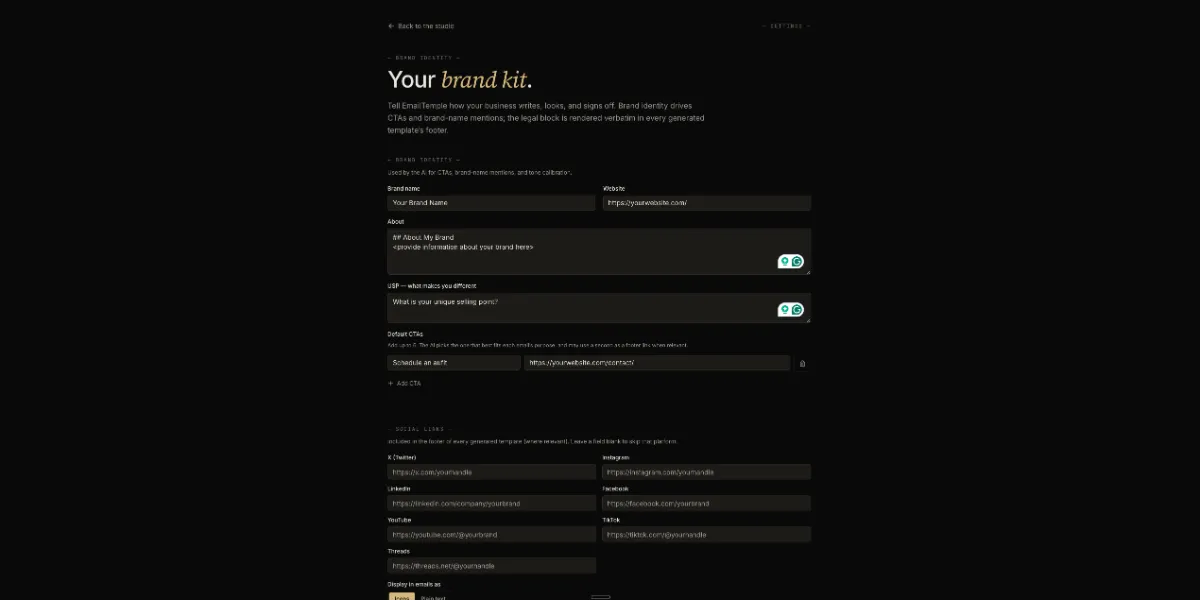
Your brand kit
- Colors SavedBrand palette, dark-mode variants, accent rules.
- Fonts SavedWeb-safe stack with Google Fonts fallback.
- Logo & assets SavedWordmark, mark, hero imagery, social icons.
- Brand voice SavedTone profile so the copy sounds like you.
- Legal footer SavedBusiness name, address, unsubscribe text.
Multi-brand kits per account on the roadmap.
-
-
Compose.
Describe the email you want — your offer, your audience, your action.
Type a brief in plain language. The studio composes a production-ready, dark-mode-safe HTML template — typographically tuned, brand-kit-aware, ESP-safe. ESP context is baked in at compose time, not bolted on at export. Pick Universal for clean, portable HTML that imports anywhere, or Mailchimp, ActiveCampaign, MailerLite or Klaviyo for their native merge-tag syntax. Your saved brand kit applies automatically. Need the whole flow, not just one email? On Pro, the Sequence Builder generates an entire sequence — up to ten emails — from a single brief in one pass.
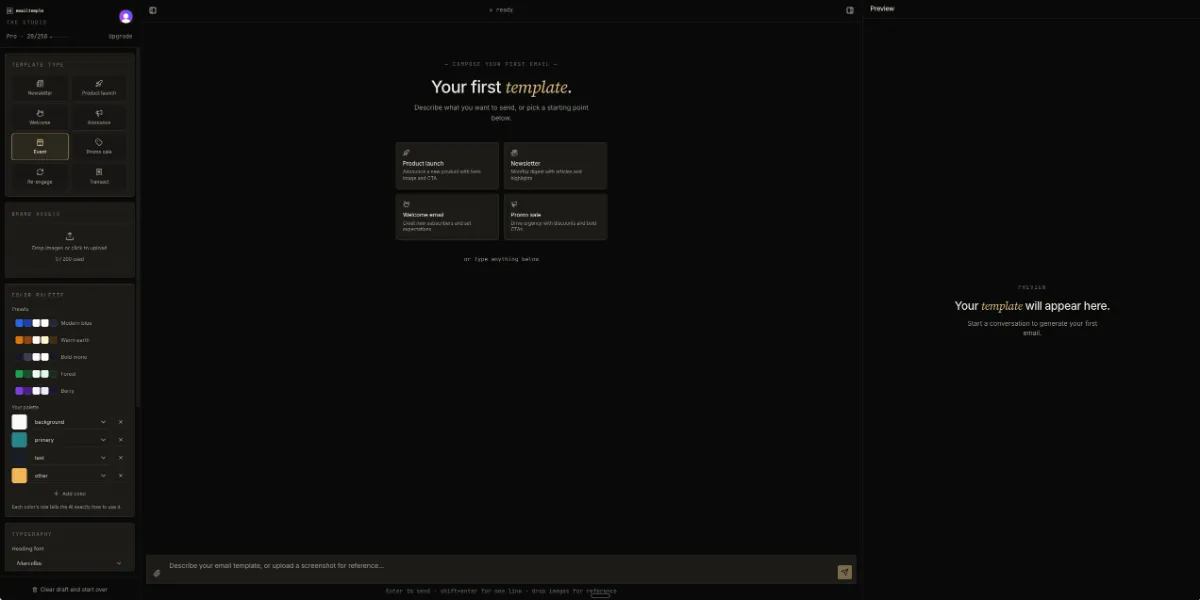
Welcome email for a paid newsletter. Audience: small-business operators who just paid €19/mo. Tone: warm, direct, not bro-y. Offer: "here's what you'll get," and a CTA to read the most-popular issue.
Composing — drafting layout, applying brand kit, checking dark-mode contrast.
✓ Welcome email drafted. 312 words, 4-block layout, primary CTA in amber, footer with unsubscribe and brand line. Dark-mode rendering validated. Ready to refine.
-
Refine.
Iterate via chat — "tighten the second paragraph." "make the CTA bronze, not amber."
Refinement is a conversation, not a settings panel. Each turn that calls the model counts as one generation; on the Free tier you have three a month. The studio keeps your brand kit, ESP, and prior turns in context — you don't re-explain. Subtle diff visualization shows what changed. Stop refining when the email reads like you wrote it.
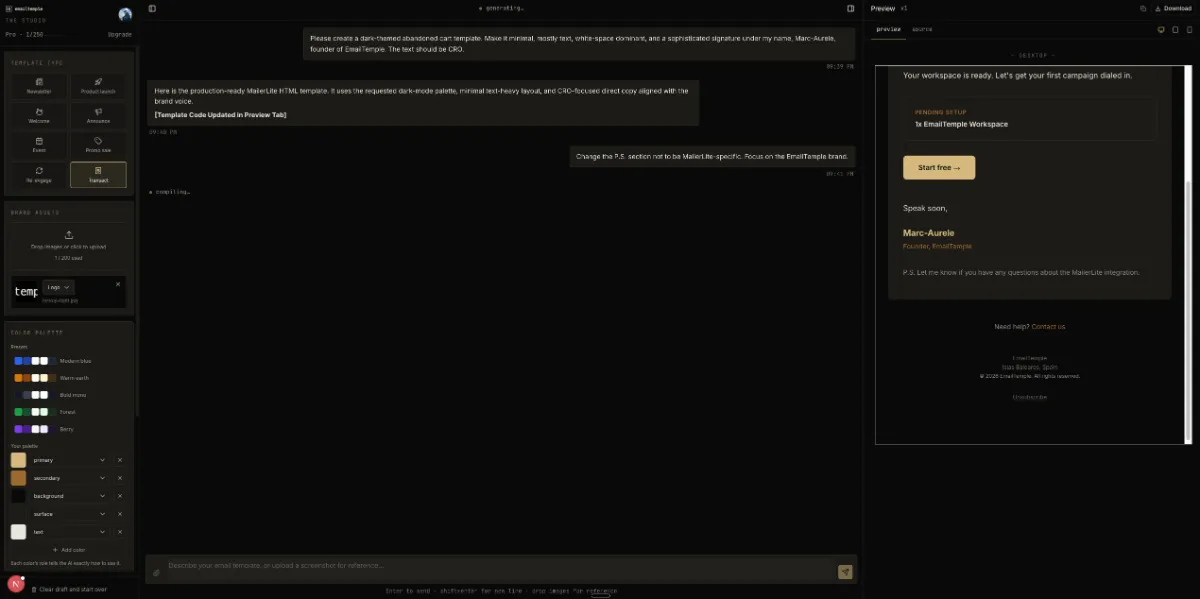
Make the CTA bronze, not amber. Tighten the second paragraph by ~30%.
✓ CTA color → bronze (#A57D2C). Para 2 trimmed from 84 → 58 words. Hierarchy preserved. Dark-mode contrast still passes WCAG AA.
Add a one-line preheader: "the first thing you should read."
✓ Preheader added. 42 chars. Renders before the open in inbox previews.
-
Export.
One click to any ESP. Production-ready HTML, paste-or-import.
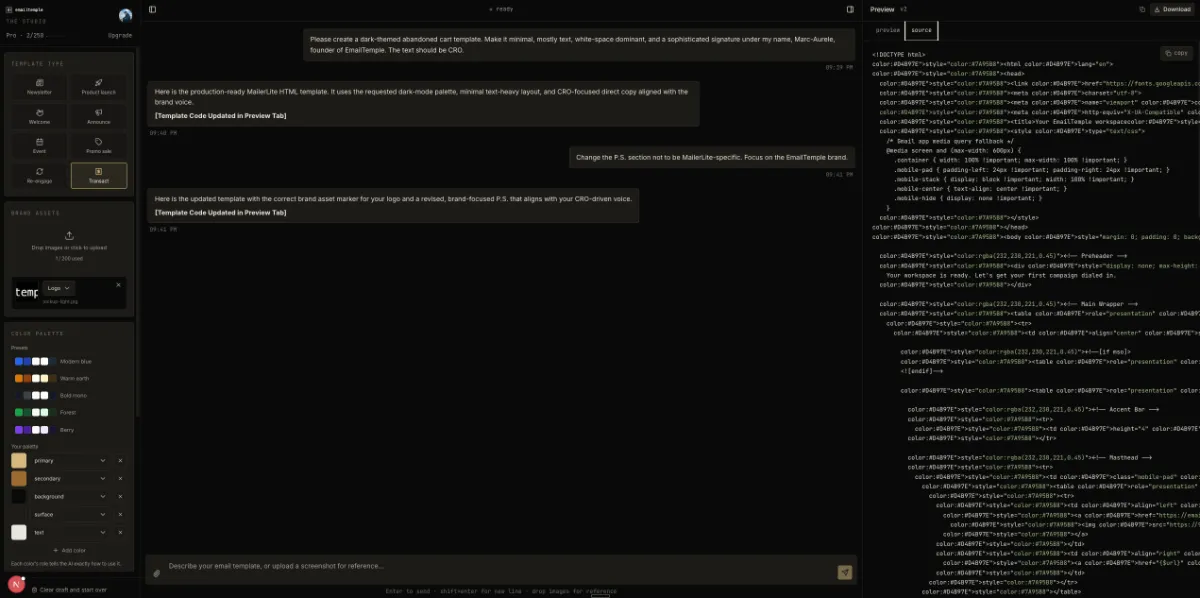
Universal is the default — standards-based, fully-inlined HTML with portable placeholders like [FIRST_NAME] and [UNSUBSCRIBE_URL]. Map them to your ESP's merge tags in one find-and-replace and paste into HubSpot, Brevo, Beehiiv, Kit or anything that takes a custom-HTML upload. Choose Mailchimp, ActiveCampaign, MailerLite or Klaviyo instead and the studio writes their native syntax for you — merge tags resolved, variable syntax, snippet-aware blocks — so the import works the first time. On a paid plan you can skip the paste entirely: connect your Mailchimp or MailerLite account and push the finished template straight in. Mailchimp files it in your template library or drafts a campaign with a test send. MailerLite creates a draft campaign. ActiveCampaign and Klaviyo connections are next.
Export to
- Any ESP — Universal Live
- Mailchimp Live
- ActiveCampaign Live
- MailerLite Live
- Klaviyo Live
Native syntax for ConvertKit, Beehiiv and Ghost on the roadmap.
Download HTML Copy to clipboard Push to Mailchimp or MailerLite
A real session
What it actually looks like.
A welcome email for a paid newsletter. Three turns and an export. Total time: four minutes, two generations consumed.
Welcome email for a paid newsletter. Audience: small-business operators who just paid €19/mo. Tone: warm, direct, not bro-y. Offer: "here's what you'll get," and a CTA to read the most-popular issue.
Composing — drafting layout, applying brand kit, checking dark-mode contrast.
✓ Welcome email drafted. 312 words, 4-block layout, primary CTA in amber, footer with unsubscribe and brand line. Dark-mode rendering validated. Ready to refine.
Make the CTA bronze, not amber. Tighten the second paragraph by ~30%.
✓ CTA color → bronze (#A57D2C). Para 2 trimmed from 84 → 58 words. Hierarchy preserved. Dark-mode contrast still passes WCAG AA.
Add a one-line preheader: "the first thing you should read."
✓ Preheader added. 42 chars. Renders before the open in inbox previews.
Export to Mailchimp.
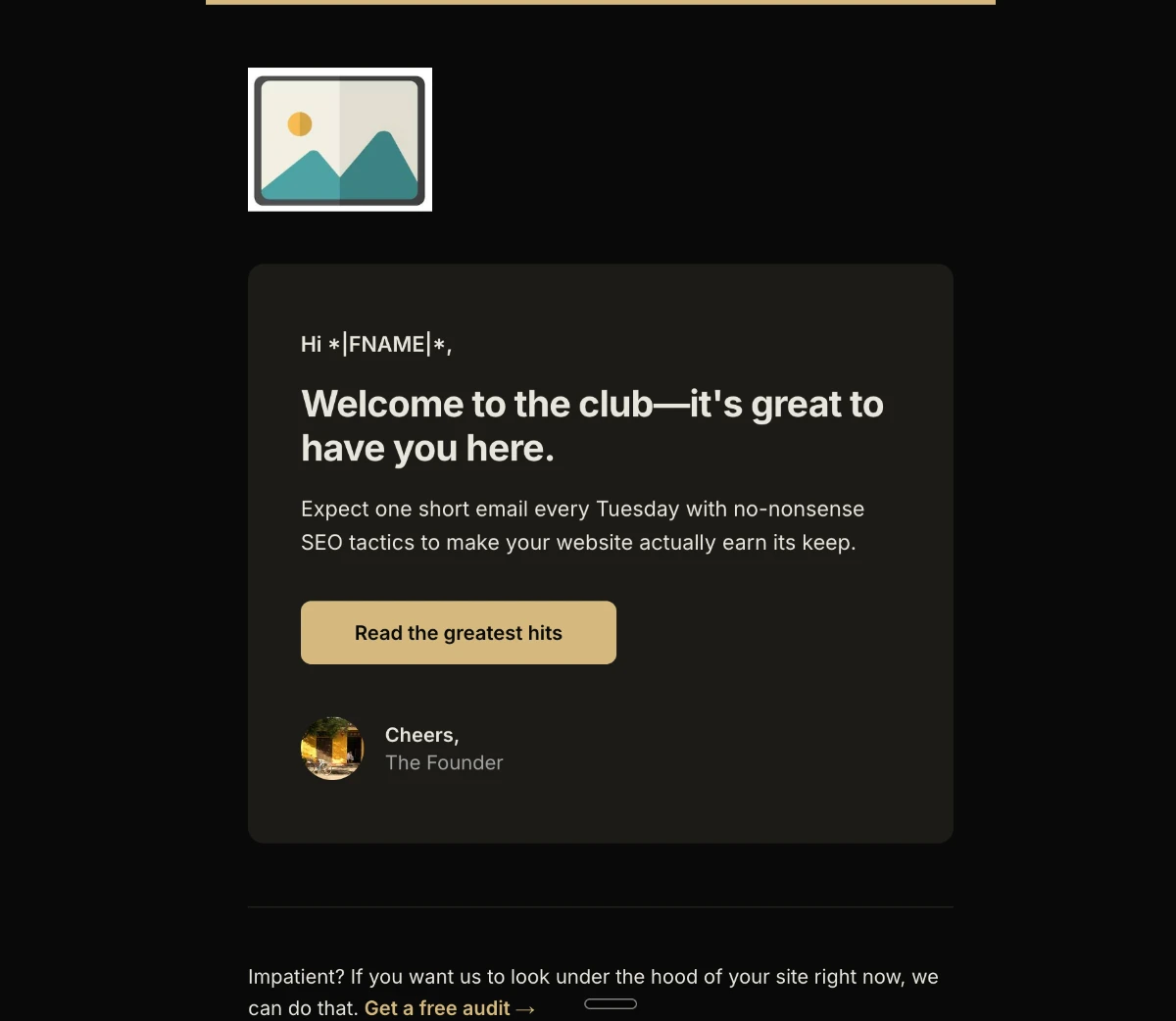
✓ HTML exported, merge tags resolved (*|FNAME|*, *|UNSUB|*). Ready to paste into Mailchimp campaign.
Built for the quirks
Each ESP renders email differently. We know.
-
Mailchimp
Merge tag syntax
Variables like *|FNAME|* and *|UNSUB|* inserted automatically when you mention personalization in chat.
-
ActiveCampaign
Snippet system
AC-compatible HTML with inline styles where AC requires them. Automation-block-aware rendering.
-
MailerLite
Variable syntax
Output uses {$name}-style variables and MailerLite-safe markup when MailerLite is the export target.
-
Klaviyo
Template tag syntax
Output uses {{ first_name }}-style template tags with default fallbacks and Klaviyo-safe blocks when Klaviyo is the export target.
Begin
Try it on a real email.
Three free generations a month, no card required.