Trust over marketing
Zero cross-sells, no promotional arrow-links, no discount strip. Visual restraint is what signals trustworthiness — the moment a receipt starts selling, it stops reading as a receipt.
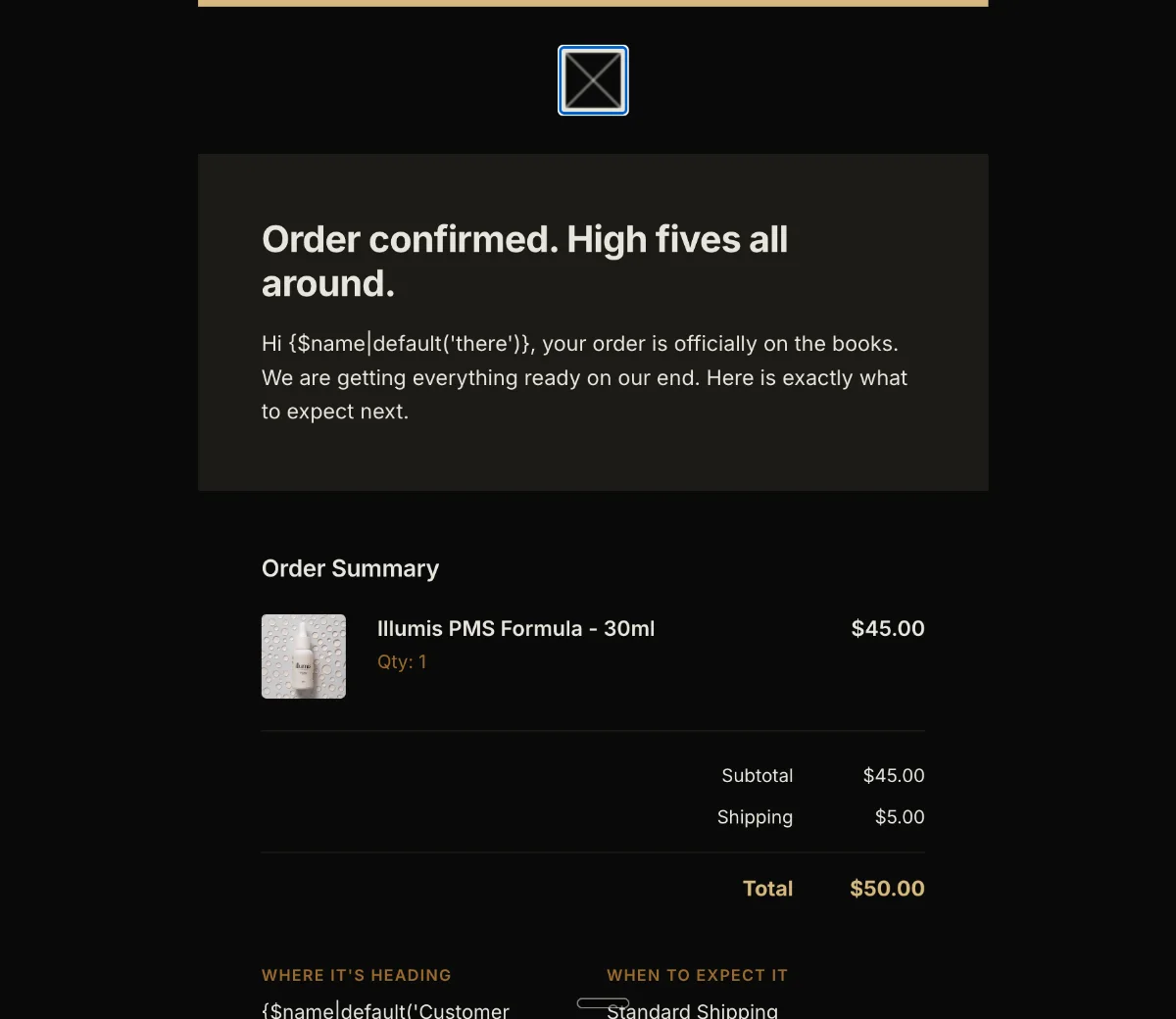
Preview
What's inside
Read off the file itself, not a spec sheet. This is the module order the download actually ships with, in the order a reader meets them.
Import
The download is a single HTML file. Here is where it goes in MailerLite, what the platform expects, and which tags are already wired up.
Plan The Custom HTML editor is an Advanced-plan feature. Lower MailerLite tiers do not expose it.
Editing MailerLite’s Custom HTML editor treats the whole document as raw HTML — there are no editable-region or repeatable-block markers, so edits happen in the code. Merge tags are the only dynamic substitution.
Watch for MailerLite requires a visible unsubscribe link and a physical mailing address in the footer. The template ships with {$unsubscribe} in place — swap the placeholder address for yours before the first send.
Two routes. In the campaign editor you can usually click an image and swap it straight from the file manager, no code involved. If that option is not offered, open the code editor — clicking an image selects its block, and you replace the src with a URL from your MailerLite file manager, which start with storage.mlcdn.com.
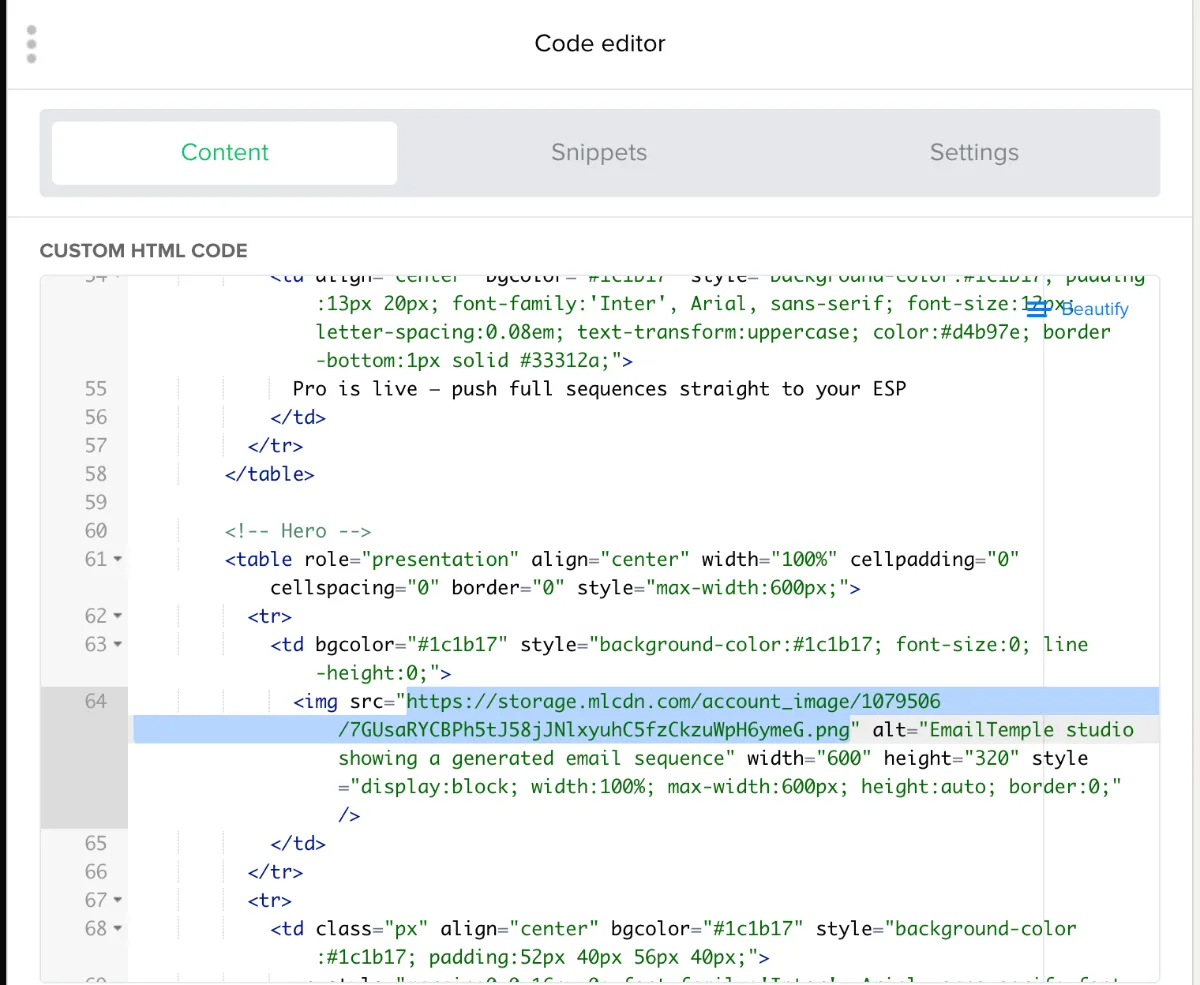
How to use it
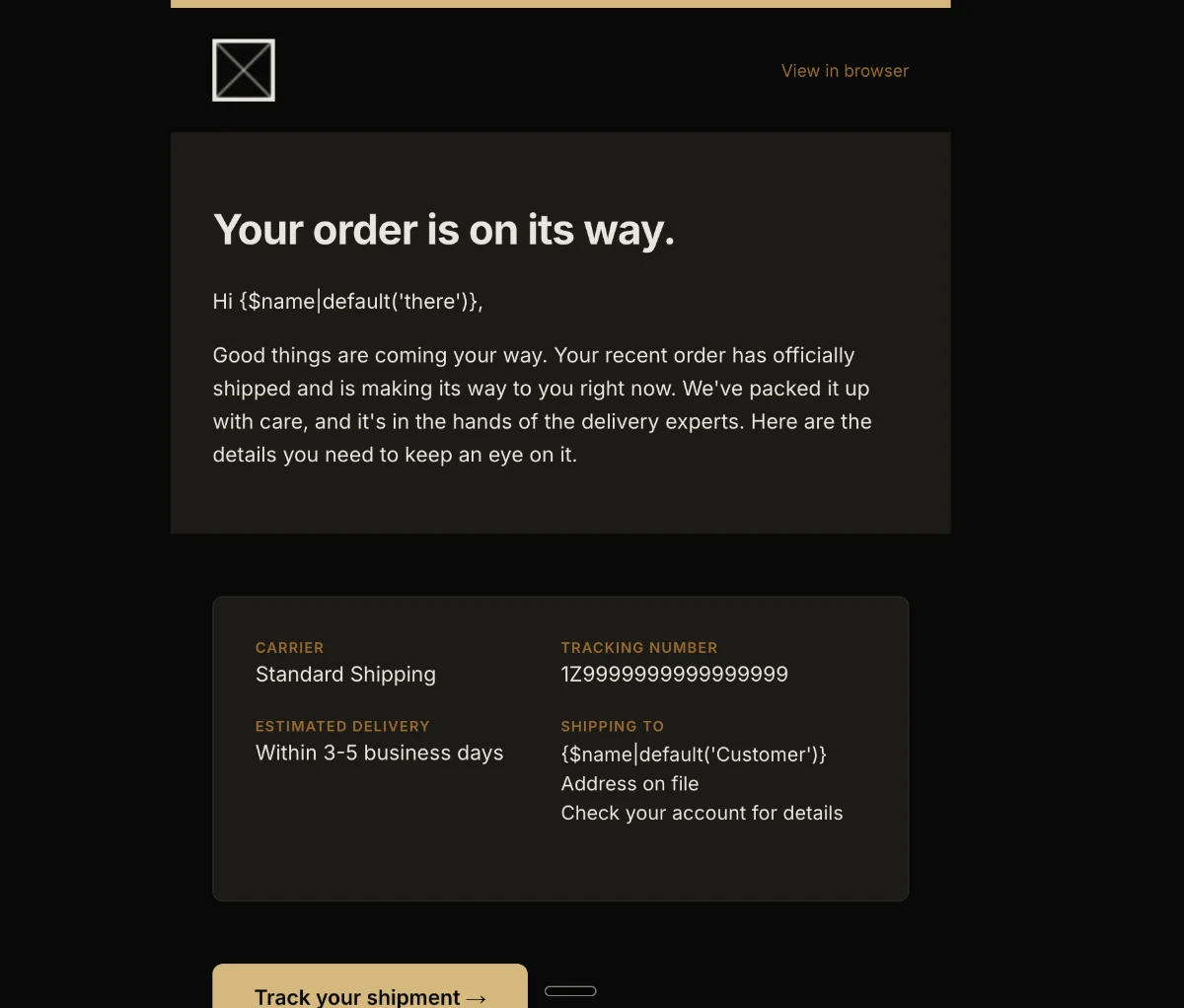
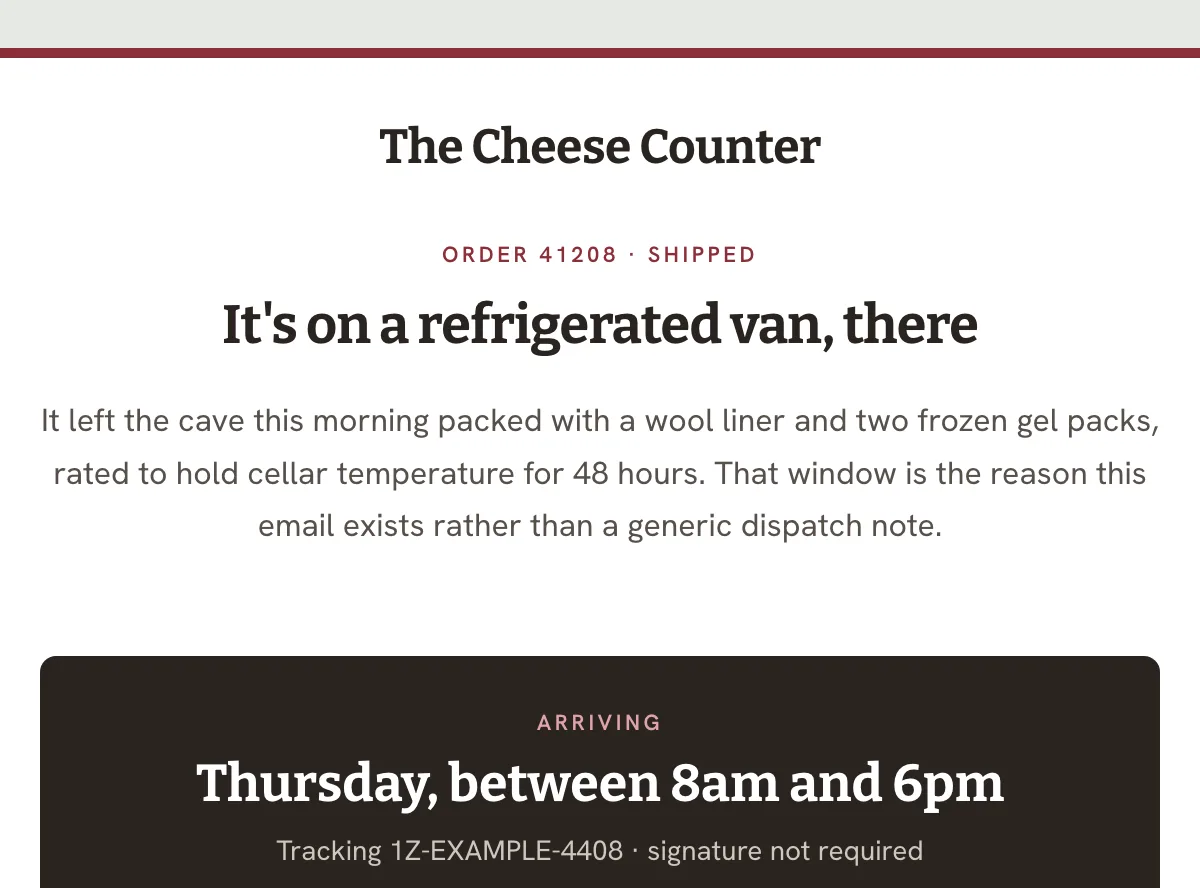
This one fires on the purchase itself and sends immediately. It is expected mail: the buyer wants to see that the money left their account and the right thing is coming, so the whole job is stating what happened and what happens next. No cross-sell, no related products, no discount on the next order — and the trigger lives in your MailerLite automation, not in this file.
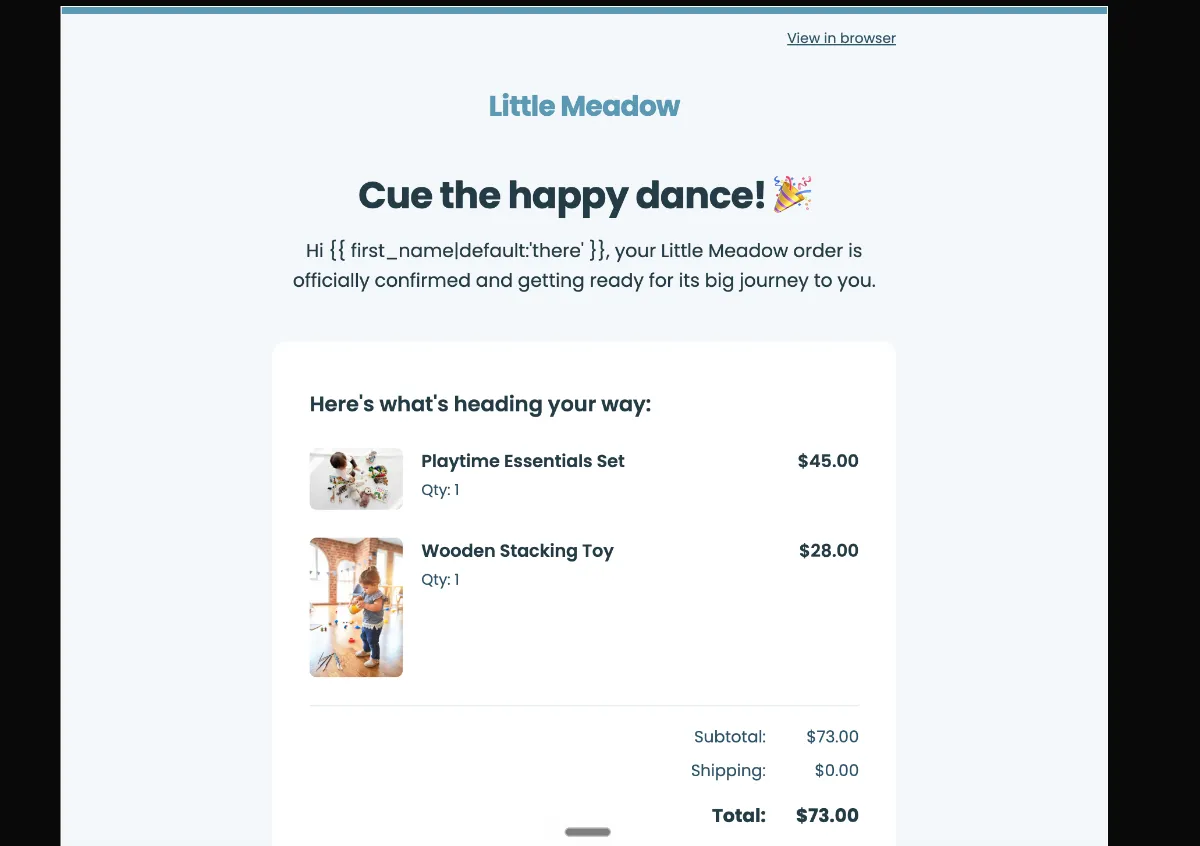
Every value in the summary block is dummy data. The line item reads “Illumis PMS Formula - 30ml” at $45.00, with $5.00 shipping and a $50.00 total, and there is only one product row, so duplicate it or map it to your store fields. Two images are hard-coded to a third-party blob host, the masthead mark and the product photo, and both need to point at assets you control. After that: the 123 Example Street block, the “Arriving in 3-5 business days” line, the “View your order” button aimed at mywebsite.com/account and support@mywebsite.com in the footer.
The craft
Zero cross-sells, no promotional arrow-links, no discount strip. Visual restraint is what signals trustworthiness — the moment a receipt starts selling, it stops reading as a receipt.
One order summary, receipt or confirmation card with clearly labelled rows carries the whole message. One or two modules is the whole archetype.
"View order" or "Track shipment" — the button exists so the reader can finish the thing they started, and it does not compete with anything.
Or refine this
Generate your own with this template as a starting point. Change the colors, the voice, the offer — describe what you want different and the studio recomposes it. Apply your brand kit and ship in your tone, not the template's.
The download is yours either way.
Open this template in the studio →
Questions
Advanced. The Custom HTML editor is not exposed on MailerLite’s free or Growing Business tiers, so the paste-in path is only available once you are on Advanced.
No. This template ships with its CSS already inlined, which is what Gmail’s webmail client needs anyway — it strips style blocks in several contexts, so inline styles are the only reliable carrier.
The archetype says no. Cross-sells and discount strips undercut the trust signal that makes a confirmation read as a confirmation, and in many jurisdictions adding promotional content changes the email’s legal classification.
Every zone sets its background twice — once as a bgcolor attribute and once as an inline background-color — which is the pattern that survives dark-mode inversion in clients that repaint backgrounds.
There is no VML fallback on the buttons, so Outlook on Windows will render them as styled text rather than a filled shape.
The layout is a 600px table backbone with a mobile breakpoint, and the CSS is already inlined for the clients that strip style blocks.
In the studio
Describe what you want to send. Get a high-converting, dark-mode-safe template in seconds. Free tier, three generations a month, no card required.