Email sequence testing before sending is the step most teams skip, because nobody owns it. Someone writes the copy, someone else builds it in the ESP, and the sequencer ends up as the test environment. Rendering glitches, broken tracking and deliverability problems then surface after the bounces, the spam complaints and the strange reporting numbers have already arrived.
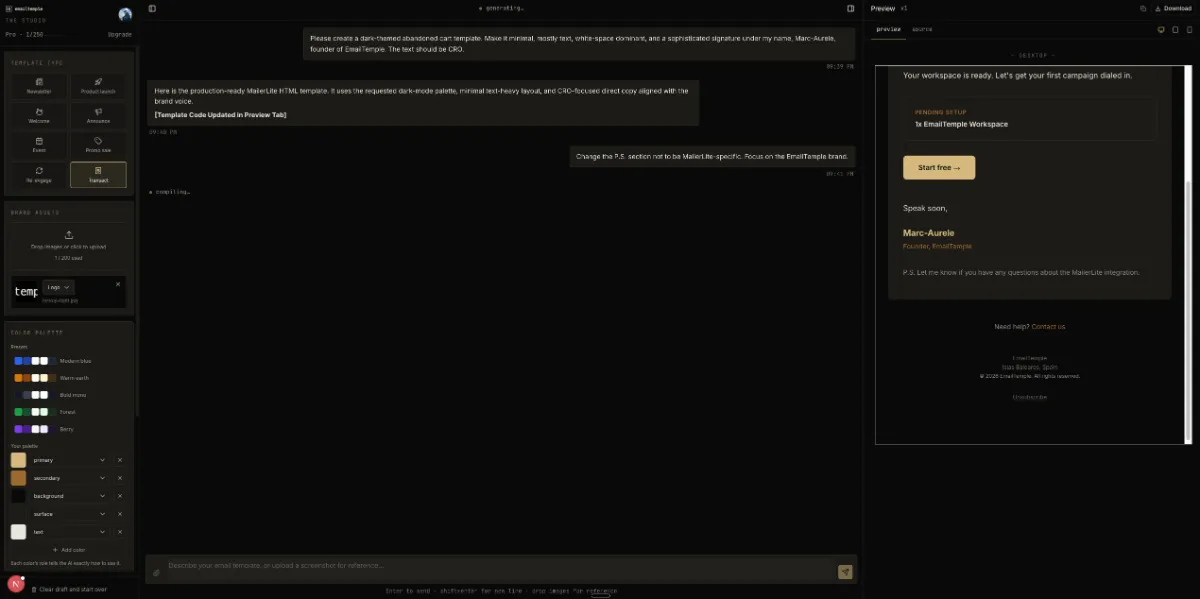
I run a pre-send workflow that treats the whole sequence as one thing to test, not a single email. This page walks through it, from how each message renders to how the emails are spaced, so every send in the flow gets checked before a subscriber sees it. EmailTemple is a chat-based studio that generates ready-to-send campaigns and whole flows and exports them to your ESP, which is why I care about what happens in the last mile before a send.
Everything to test before you send a sequence
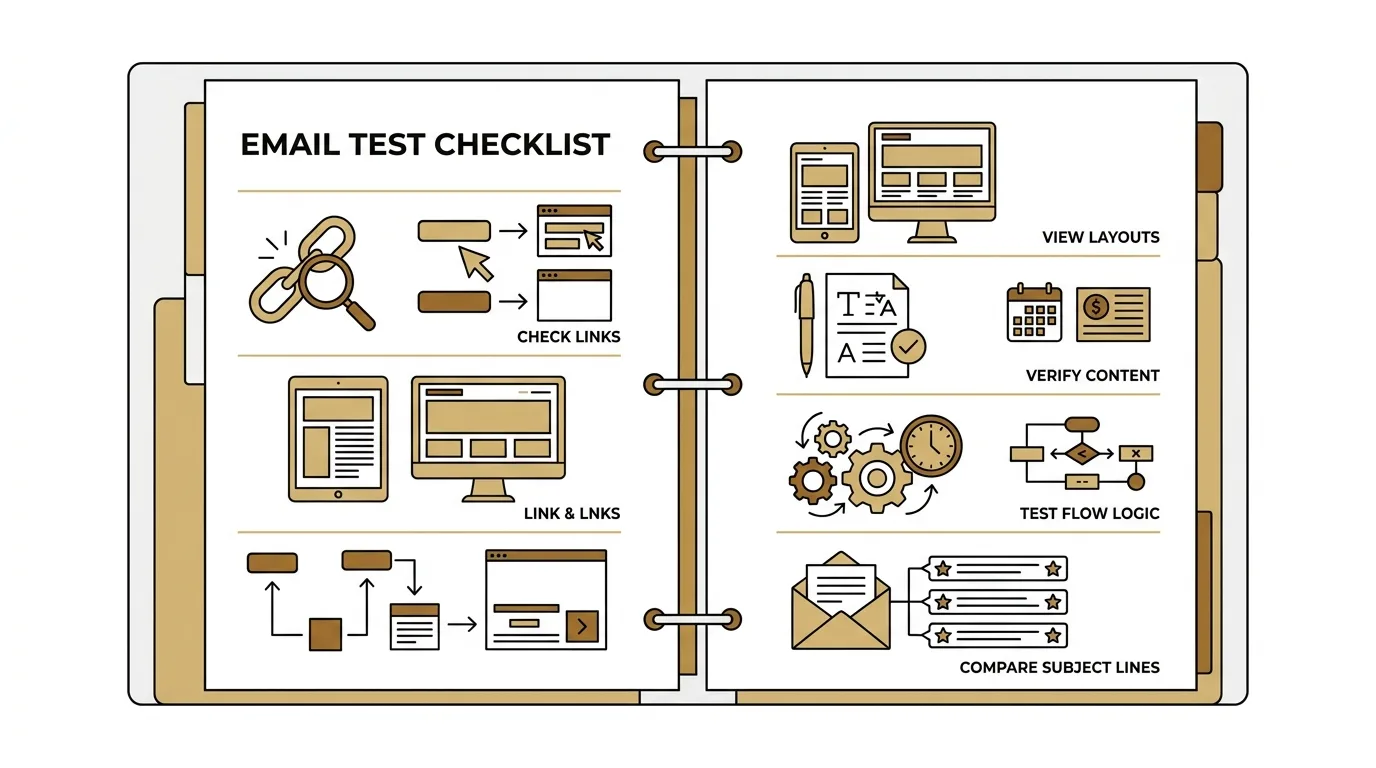
I run five checks in this order: render every email, test-send the entire sequence, verify copy and links and merge tags, vet the list, and set the timing between emails. Each one catches a different kind of failure, and skipping any of them leaves a gap that subscribers find before you do.
- Render: open each email in more than one inbox and confirm layout, images, and dark mode hold up.
- Test-send: send the full sequence to yourself so you see the emails in order, threaded the way a subscriber will.
- Copy, links, merge tags: read every email for typos, click every link, and confirm each merge tag fills in.
- List: remove bad addresses and confirm the right segment is enrolled before anything goes out.
- Timing: set the delay between emails and the send window so the sequence lands when you intend.
Most checklists stop at one email. The layer that breaks in practice is the whole sequence: the hand-off between emails, the gaps between sends, and the arc a subscriber experiences from first message to last. That is what this checklist covers, and the sections below take each check in depth.
What you’ll need
Gather these before you start, so each check runs without stopping to hunt for a file or an inbox.
- Every email in the sequence, published or saved in final form
- A test inbox on more than one client, such as Gmail, Outlook, and Apple Mail
- The exported HTML for each email
- A small test list of your own addresses, so you can enroll yourself
For the rendering pass, the Free HTML Email Tester catches breaks fast, so run your exported HTML through it before you test email sequence before sending to real inboxes.
Checking how each email renders across inboxes
An email that looks fine in the composer can still break in the inbox, because the composer shows one rendering and your subscribers open another. Outlook on Windows lays out HTML with Microsoft Word’s engine, dark mode recolors what you designed, and mobile clients reflow the layout to a narrow screen. Each of those changes the email after you have approved it.
AI-generated HTML deserves the most suspicion here. A controlled study of 9 emails from ChatGPT, Claude and Gemini found that 8 had at least one Outlook rendering failure and none were production-ready. Common faults were wrong font fallbacks, collapsed widths and unsupported rounded corners. Working email developers say the same: the preview looks great, then Gmail mobile or Outlook shows something else. I treat generated HTML as a draft that needs an email rendering test before it goes near a sequence.
Check each client for its own failure:
- Outlook on Windows: Word’s engine ignores
background-imageandborder-radius, and it reads table padding oddly. Look for squished widths, fallback fonts and buttons that lost their shape. The full walkthrough is in How to Test HTML Email in Outlook and Catch What Breaks. - Dark mode (Gmail iOS, Apple Mail, Outlook): Check that the logo stays visible, text keeps its contrast and buttons stay readable once colors invert.
- Mobile: Confirm the layout stacks to one column, the button is easy to tap and no line of copy runs off the screen.
- Images blocked: Some clients hide images until the reader allows them. Every image needs ALT text, otherwise the reader sees an empty square where your hero or button graphic should be. That gap can cost you opens and clicks in the first emails of a sequence, when attention is highest.
Run this on every email in the sequence, not just the first. Layout problems tend to live in the emails someone built last and previewed least.
Test-sending the entire sequence, not just the first email
A sequence test is only finished when every email has been sent to a real inbox, in order, on its real delay. Testing email one and trusting the rest is how a broken day-three email reaches the whole list. Here is the procedure I follow, in three steps.
Publish every email first
Open the sequence in your ESP and confirm each email is published, so none is skipped when the test runs.
Send a test of the full flow
Enroll a test address, then check that every step arrives in the right order and on the right delay.
Read it as a subscriber would
Open each arrived email in a real inbox and check the subject line, the timing and the mobile view.
Publish every email first
Every email in the sequence needs to be published before the test, because a draft step will not send. Open the sequence in your ESP’s email sequence editor and scan the full list of steps for anything still marked as a draft.
EmailTemple exports the campaign into your ESP, and where it pushes work into an account it creates drafts only. Publishing each email is your job inside the ESP, and that is also where the test belongs, since the ESP is what will send the sequence to your list.
Send a test of the full flow
Enroll a test address you control and let the whole flow run, checking that each email arrives in the right order on the right delay. Some tools only send the first email when you use their built-in test option, and HubSpot users have long asked for a way to send a test email in sequences from any individual step. Where your ESP behaves that way, enrolling yourself is the dependable route.
Shorten the delays for the test run so you are not waiting days, then restore the real values before launch. Note that delays set in hours can ignore the sequence-level schedule in some tools, so the run is also your chance to see when each email actually lands.
Read it as a subscriber would
Open every arrived email in a real inbox, on your phone as well as on desktop. Check the subject line, the preview text, the order of the messages and how each one renders on a small screen.
Read the sequence start to finish in one sitting. Gaps in logic, repeated offers and a second email that restates the first are easy to spot this way, and invisible when you review one email at a time.
Verifying copy, links, and merge tags
These are the content-layer checks, and they fail silently: nothing errors, the email sends, and subscribers see a broken greeting or a dead link. I read every email in the sequence as a subscriber would, with three questions in hand.
Do the subject line and preheader read correctly across the sequence? I read all the subject lines in order, then each preheader beside its subject line. The preheader should add a second line of information, and it should never default to the first line of body copy or to a stray “View in browser” string. Subject line testing, meaning split sends on a single email, is a separate job; the timing around it comes in the scheduling section.
Does every link resolve to the right destination? Click each one from the test send rather than from the editor. I check that the button, the text link and the footer link all land where I intend, that the offer link points at the live page and that the unsubscribe link works. For quick link and preview checks, Free email tools, no signup covers it without opening an account.
Do the merge tags render real values? A tag that is not recognized shows up as raw text in the live email, and a greeting that reads “Hi |FNAME|” costs you the reader before the offer is seen. Each ESP uses its own syntax, so a tag that works in one breaks in another after import:
| ESP | First name | Unsubscribe |
|---|---|---|
| Mailchimp | *|FNAME|* | *|UNSUB|* |
| MailerLite | {$name} | {$unsubscribe} |
| ActiveCampaign | %FIRSTNAME% | %UNSUBSCRIBELINK% |
| Klaviyo | {{ first_name }} | {% unsubscribe %} |
Kit uses {{ subscriber.first_name }}, Beehiiv uses {{first_name}} (case-sensitive), and Campaign Monitor uses [firstname]. EmailTemple’s Universal mode emits [FIRST_NAME] and [UNSUBSCRIBE_URL], which you map to your ESP’s own tags before sending.
Test with a contact record that has a name filled in and one that has it blank. The blank case is where fallback text earns its place, and it is the one most teams never see until it reaches the list.
Vetting your list before the sequence goes out
A sequence multiplies whatever is wrong with your list. One bad address costs you a bounce on email one, and then every later email in the flow can add to the damage, so the list gets its own gate before anything goes live. This is the deliverability check before sending that a non-technical operator can run in an afternoon.
Here is the gate I run, in order:
- Verify recently. Run the list through a verification tool close to the send date. A list verified months ago has decayed since.
- Remove invalid addresses. Delete every address the tool marks invalid before it reaches the sequence.
- Isolate risky addresses. Role accounts (info@, sales@, support@) and catch-all domains go into a separate, slower batch. Keep them out of the main send.
- Check typo-domains and stale records. Scan for gmial.com, hotnail.com and similar misspellings, fix the ones you can, and drop the rest. Old records with no recent opens or activity get the same treatment as the risky batch.
Enriched emails deserve their own bucket. If you added addresses through enrichment and never verified them afterward, treat them as a separate risk category and send them slower, or verify them first. Mixed into the main batch, they make your reporting unreliable and put your sender reputation at risk.
Then watch bounce rate by campaign, not only across your whole account. A per-campaign number tells you quickly whether the gate is working, and which batch to blame when it is not.
All of this sits on the content-and-list side of deliverability. It decides who will receive your emails and how clean that audience is, and it is the part you control without touching domain settings. With a verified list and subscribers sorted by risk, the sequence you tested in the earlier steps reaches the people it was written for.
Setting the schedule and timing between emails
Before you activate a sequence, check three timing layers: the overall schedule, the delay between each step, and the calendar gap those two settings produce together. Each layer can look correct on its own and still send an email on a day you never intended.
Start with the email sequence schedule, which sets the days of the week and the time of day the sequence is allowed to send. Then open every step and read its delay. When a delay is set in days and the schedule excludes weekends, the email waits for the next allowed day. A two-day delay after a Friday send lands on Monday or later, so the real gap is longer than the number on the screen. Delays set in hours can ignore the schedule in some tools, which means an email can go out at an hour you blocked. Kit’s documentation describes exactly this behavior, so check how your ESP handles it before you trust the preview.
I walk the full sequence on a calendar. Write down the join date, add each delay, apply the schedule’s allowed days, and note the day each email actually lands. If email three arrives eleven days after sign-up when you planned seven, you have found it before a subscriber did.
Then look at the number of steps. A two-to-three email sequence leaves replies and clicks on the table, because a single send only reaches the fraction of the list that opens it, and the readers who do open rarely act on a one-time offer. A longer flow gives the same offer several angles and more surface area to be seen. Cadence is coverage: you cannot know which day a given subscriber is ready to buy, so more well-spaced sends catch more of them.
Specific benchmarks exist. Instantly’s March 2026 guide recommends sending Tuesday to Thursday, 9 to 11 AM in the recipient’s time zone, with 3 to 7 day intervals and 4 to 7 emails per sequence. It also reports that sequences of 4 to 7 steps generate three times the reply rate of those with only 1 to 3. That guidance is written for cold outreach, so treat it as a starting point and compare it with your own open and click data.
EmailTemple makes a higher cadence survivable, since email number four costs one generation instead of another round of design work. The right frequency for your list is still your call.
Pre-send mistakes that slip through
Most sequence failures trace back to five gaps in testing, and each one is easy to audit before you hit activate. I’ve made every one of these myself, so treat the list as a checklist against your own process.
- Testing only the first email. Email one gets all the attention, and the later ones go live unread. A broken day-three link then reaches the whole list on schedule.
- Over-sending right after signup. A new subscriber who gets several emails in the first day or two tends to unsubscribe before the sequence earns a single click. Space the early steps out, and read the gaps as the subscriber’s calendar, not yours.
- Skipping the mobile and dark-mode check. The composer preview shows one rendering, and your subscribers open another, usually on a phone. Logos with white backgrounds and low-contrast text are the usual casualties.
- Shipping raw merge tags. A greeting that reads “Hi {{first_name}}” tells the reader nobody looked. Missing fallback values cause it, and only a test send to a real inbox shows it.
- Treating one test send as proof the whole flow works. A single pass confirms a single path. Branches, delays and conditions each need their own run.
If you take one habit from this list, make it this: audit sequence emails as a subscriber receives them, in order, on their real delays. That catches most of these gaps at once, because the failures show up in the inbox and rarely in the builder.
Sending fixes nothing after the fact. A bad email that has gone out stays out, so each of these checks belongs before activation. Run the list instead of trusting that the draft looked fine on screen.
Running the test the same way every time
I run the same five checks in the same order every time: render every email, test-send the whole sequence, verify copy and links and merge tags, vet the list, then set the timing. For a first-time sender, the full-sequence test-send and the list check matter most, because those two catch the failures that reach every subscriber at once. For a live sequence I’m editing, I re-render and re-test only the changed emails, and I recheck the delays around them so the calendar gap stays what I intended.
EmailTemple generates a whole sequence in one pass, production-ready and dark-mode safe, and exports it to any major ESP in one click. That leaves you with a finished flow to put through the checks above rather than a blank editor. When you’re ready, generate your first campaign and run it through this checklist before you send it. The routine takes less time on the second sequence than the first, and it gets shorter every time after that.
For the full walkthrough of building one, see our Sequence Builder.
Frequently asked questions
Can I test-send an entire email sequence at once?
Yes, once every email in the sequence is published, you can enroll your own address and receive the full flow in order. I use a fresh address that has never been on the list, so the welcome logic fires as it would for a real subscriber. Shorten the delays only if your tool lets you do it without changing the real schedule, and restore them before you activate.
Why does my email look fine in the editor but broken in the inbox?
The editor shows one rendering, and each inbox client draws its own. Outlook on Windows uses Microsoft Word’s engine for layout, and dark mode can invert colors and swap logo backgrounds. The fix is to send a test to real accounts in the clients your subscribers use and read the result there.
Does a test send use up my sending list or count against my allowance?
That depends on your ESP and plan, so check its own documentation before you rely on either answer. A test send goes to the addresses you enter by hand rather than to your list, which keeps subscribers out of it. Enrolling yourself in a live sequence is a different action from a one-off test email, so confirm which one your tool is performing.
How many days should I space the emails in a sequence?
Start with a gap of one to three days between early emails and widen it as the sequence moves on, then adjust from your open and click data. Whatever you choose, read the calendar your delays produce, because a schedule limited to weekdays can push an email to a different day than you expected. When delays are set in hours, they can ignore the overall schedule and send at times you did not plan. That is why I check the real send dates during the full test.
What should I check on my list before sending a sequence?
Remove addresses that bounced or went inactive, confirm everyone on it opted in, and make sure no one is enrolled twice. A sequence multiplies whatever is wrong with the list, so one bad segment can hurt every email in the flow. I also send the first email to a small group of my own addresses before opening it to everyone.
How do I test how an email renders in Outlook and dark mode?
Send the email to real Outlook and dark-mode inboxes, then check the layout, the logo, the button colors and the text contrast. Open the message on desktop and on mobile, since the two can differ. For the client-by-client detail, see the dedicated Outlook testing article on this site.