Introduction
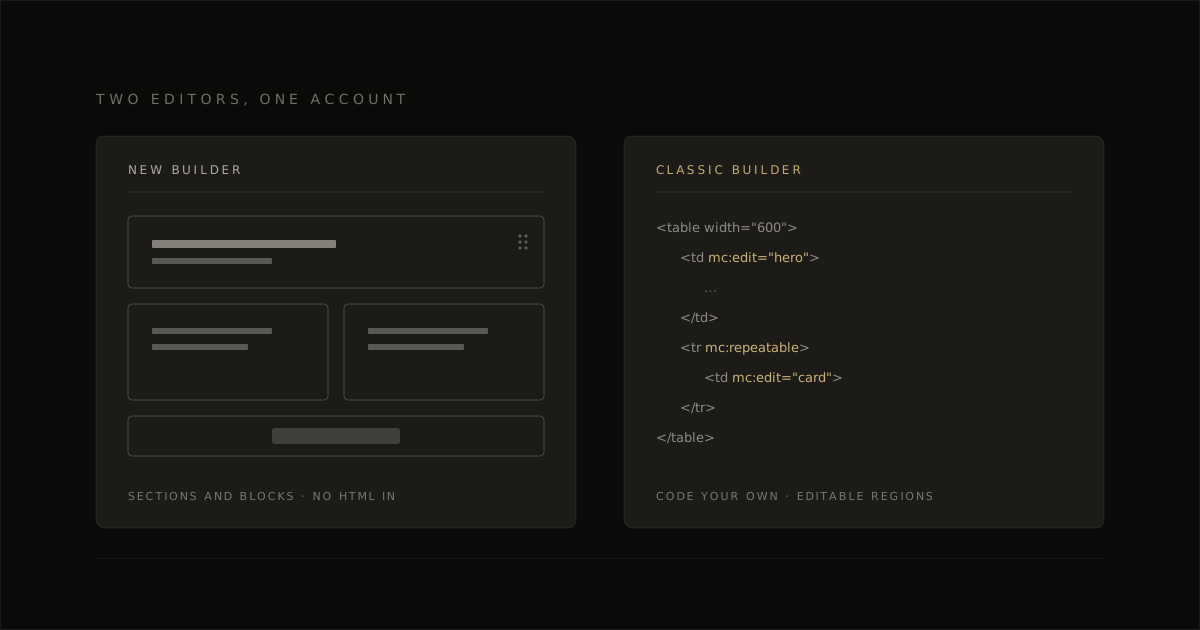
The Mailchimp new builder vs classic builder decision is a pick between two distinct editor paths. The new one feels easier to work in, with a more guided layout. Classic is the path that gives you flexible design control and custom HTML.
This is for anyone choosing an editor, and for a Mailchimp user who is staring at a campaign screen and unsure which path they’re already in. You’ll get how the two builders differ, when to pick each, and the one import constraint that traps people who paste their own code.
New Builder vs Classic Builder at a Glance
The new builder edits visually on the canvas, and the classic builder is block-based with full custom HTML, CSS, and code. Both assemble the email from content blocks, and Mailchimp still documents the older path as the legacy builder. So generate a branded Mailchimp template with the design already dialed in.
| At a glance | New builder | Classic builder |
|---|---|---|
| Editing experience | Visual canvas editing | Block-based legacy builder |
| Design flexibility | Guided visual layouts | Flexible content blocks |
| Code and customization | On-canvas visual controls | Full custom HTML/CSS |
| Learning curve | Fast on the canvas | HTML-comfortable operators |
| Best-fit team | Speed-focused marketing teams | Hands-on classic builder teams |
How the New Builder Works
The new builder is Mailchimp’s visual, no-code path: you assemble the email on a live canvas, then finish design and send from that same view. Code support is minimal, and the campaign stays in the visual format.
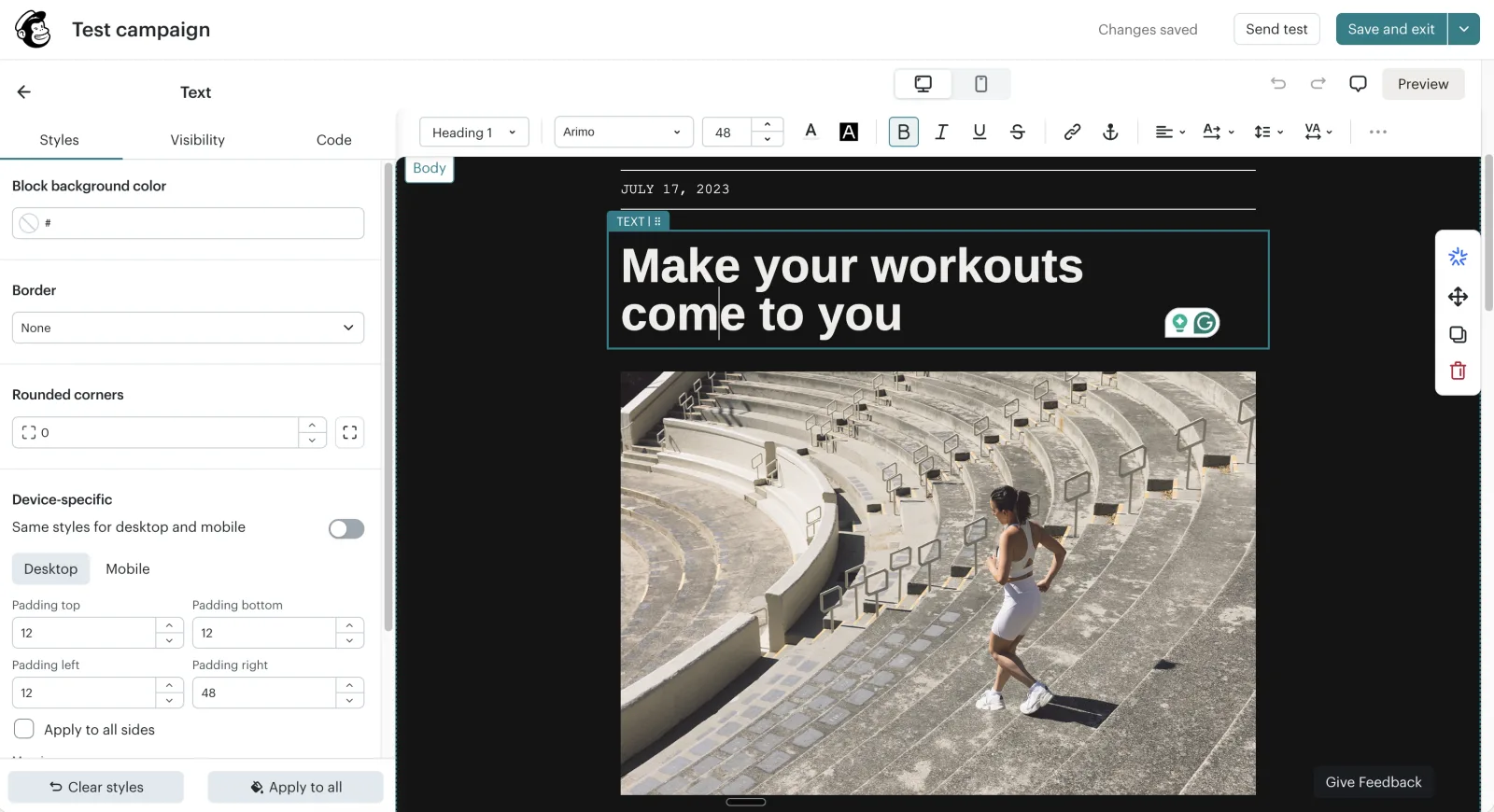
Start from prebuilt layouts or a blank grid, then work block by block until the email is ready to send. The editor is built for operators who want a guided pass in the canvas.
Editing directly on the canvas
Click a line of copy or an image on the canvas and change it in place, WYSIWYG. So the selected content block opens its controls beside the preview, and the design on screen is the one you’re editing.
Content blocks and layouts
You drag and drop a content block into columned layouts, either a prebuilt grid or a blank one, then stack the rest of the email the same way. Paragraph, heading, image, button, divider, and spacer blocks fill those columns until the piece holds.
Styles for desktop and mobile
Desktop and mobile styles start linked, so the default look carries across both views. Unlink them on a content block when you need device-specific alignment, padding, or margin. Toggle the desktop and mobile icons to check the styles on each view.
How the Classic Builder Works
The classic builder is Mailchimp’s block-based editor: you open one content block, change it in a side panel, save, and then move to the next. A custom HTML file can run here too, which is how a production template with mc: attributes gets into the campaign.
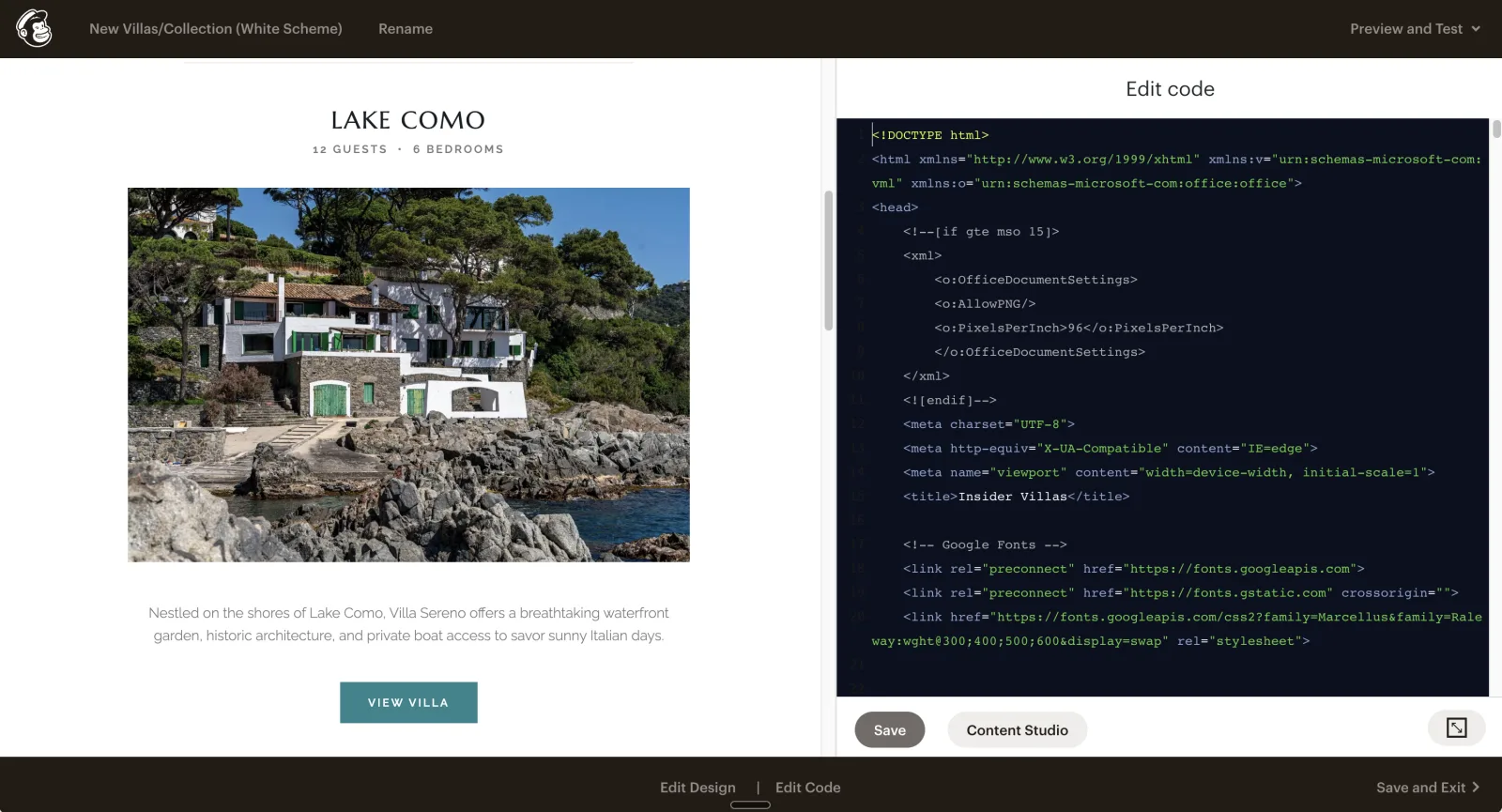
This is Mailchimp’s legacy builder, and the save-then-switch rhythm is already familiar if you’ve been sending from Mailchimp for years. That’s the whole editing loop, from layout through send.
Block-based editing in a side panel
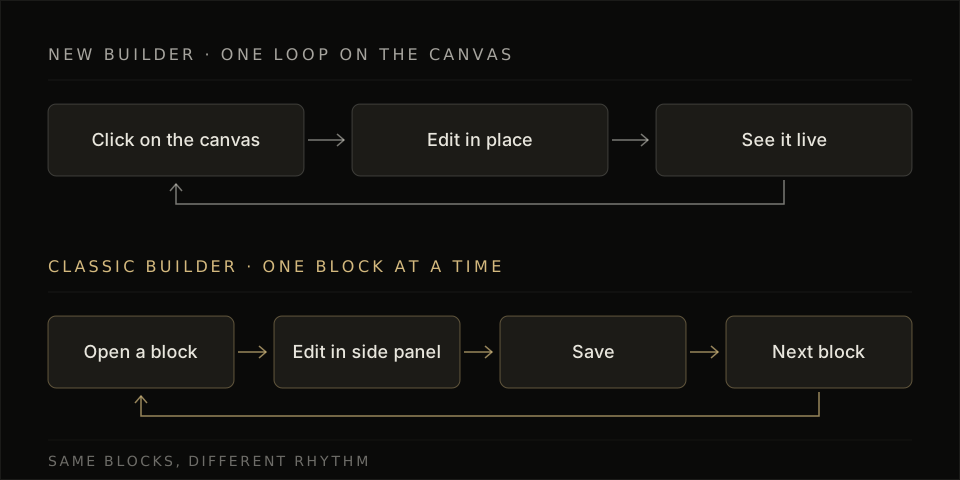
You work one content block at a time in a side panel, and you’ll save that block before you open another. Text and image blocks drop into the template layout, then every field is configured from that panel.
So long-time users already have this rhythm in the legacy builder. Side-panel editing is how every stock layout gets finished.
Custom HTML and mc: editable regions
Classic accepts hand-coded or imported custom HTML that uses Mailchimp’s mc: attributes, and each mc:edit cell becomes an editable region in the sidebar. Place mc:edit on a <td> or a standalone <img> with a unique name per leaf, and the sidebar fields map back to that code.
The Import Trap: Code Your Own Always Lands in Classic
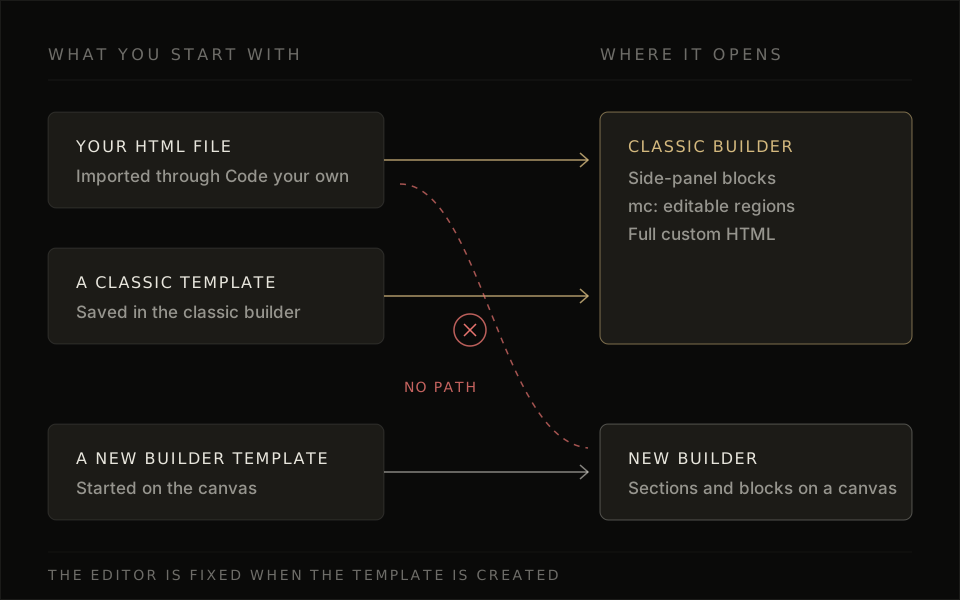
Importing a template as Code Your Own always yields Classic. Paste custom HTML into that import and Mailchimp opens a Classic campaign, and that’s the path people hit when they bring finished markup into the product.
So the new builder stays on visual Sections and Blocks when you start a template in that editor. Pick your editor before you commit to code or a visual canvas, because each of the two builders keeps imported templates on the path you started.
Which Builder to Use
The choice comes down to code control versus visual speed. Non-technical users choose the new builder for a live canvas, and production HTML stays with Classic.
| What you need | New builder | Classic builder |
|---|---|---|
| Non-technical team | ✓ | Developer editing |
| Drag-and-drop visual editing | ✓ | Side-panel blocks |
| Custom HTML templates | Visual canvas | ✓ |
| mc: editable regions | Layouts and blocks | ✓ |
| Pixel-precise layouts | Canvas styles | ✓ |
Use the new builder if
Use the new builder if your team wants fast visual editing and drag-and-drop on a live canvas. That’s the path built for a non-technical team that ships from layouts and content blocks.
The features that matter here are on-canvas editing and desktop and mobile styles. And both builders assemble an email from blocks, so pick this one when the canvas is enough.
Use the classic builder if
Use the classic builder if you already run custom HTML templates and developers need mc: editable regions or pixel-precise layouts. Side-panel block editing is how those files get day-to-day copy updates.
Teams choose Classic when users need code control on a production layout. That’s the editor built for developer support on those templates.
Common Problems When Switching Between Builders
Classic HTML that used to render cleanly can start looking different in Outlook, with a three-column layout stacking into single images and forcing a full re-test on Mac and Windows. Some people report that you’ll then open the same campaign on Mac Outlook and Windows Outlook and scan every column and text block before the next send.
If you try to edit HTML for a single block, or you switch to the new builder to patch it, the workaround can add fresh formatting (unwanted link styling is a common one). Those workaround options may get disabled later without notice, and a test send can also look different from the canvas, especially on alignment. So you’ll do a second edit pass until the live text matches, including buttons and spacing.
Skipping the Editor Decision Entirely
EmailTemple generates Classic, mc:-editable templates and exports them to Mailchimp as drafts you’ll approve in your ESP. You describe the campaign, the studio returns a coded template with custom mc: regions already in place, and that file is the Classic starting point for marketing emails. Generate your branded template for free.
Frequently Asked Questions
Can I switch from the classic builder to the new builder?
You can switch your default email editor in Mailchimp and open a fresh campaign on the live canvas. Coded HTML you already run in Classic stays as a Classic campaign, so you rebuild that layout in the visual editor when you want it there.
Does importing custom HTML use the new builder or the classic builder?
Importing custom HTML through Code Your Own always opens the classic builder. Paste finished markup into that import and Mailchimp keeps you on that path.
Is Mailchimp getting rid of the classic builder?
Mailchimp still documents the legacy editor and publishes steps to switch your default. New campaigns open in the visual editor by default, and if you’ve used the older editor before, that stays your default until you change it.
Which builder supports custom HTML and CSS?
The classic builder is the path that accepts a full HTML file plus CSS and mc: editable regions. Production templates with those regions live here.
Why does my email look different in a test send than in the builder?
A test send can look different from the on-screen preview, especially in Outlook. Re-check buttons and spacing on Mac and Windows before you go live.