Outlook HTML email rendering issues usually come down to one ugly fact: an email can look perfect in a browser preview, your ESP editor, or even Apple Mail, then fall apart the moment it hits Outlook on Windows. Tables shift, padding changes, buttons lose their shape, and layouts that felt dialed in suddenly look cheap or broken.
The root cause is not random bugs, it is Outlook’s long-running use of the Microsoft Word rendering engine in classic Windows desktop versions, a limitation documented by Litmus and HTeuMeuLeu. This piece breaks down why that engine causes the damage, which versions of Outlook behave differently, and which structural fixes actually hold up when you need HTML email to render cleanly.
The Fast Answer: Why Outlook Breaks Your Email
The root cause in one line
Classic Outlook on Windows, including Outlook 2007 through 2019 and classic Microsoft 365 desktop Outlook, renders HTML with the Microsoft Word engine, not a browser engine. That one decision explains nearly every serious Outlook email bug.
If your email breaks in Outlook, the problem usually is not your idea or your ESP preview. It is that Word interprets HTML and CSS differently, with weaker support for modern layout, spacing, and button styling.
The fixes at a glance
- Check your layout math so wrapper padding, inner table widths, cell padding, and column widths do not overflow the container.
- Put the charset meta first in the
<head>so Outlook parses the document cleanly. - Remove phantom image gaps with
display:blockon images and zeroedline-heightandfont-sizeon image-only cells. - Give every image an explicit pixel
widthattribute so Outlook sizes it predictably. - Use MSO conditional comments and VML for Outlook-only fallbacks, especially for rounded buttons.
- Add
word-breakandoverflow-wrapprotection for long URLs, IDs, and other unbroken strings.
Those six are the whole repair kit. For the deeper mechanics behind AI-generated email code and client quirks, see can AI write HTML email.
Outlook Email Not Displaying Properly: A Symptom Map
Most Outlook HTML email rendering issues announce themselves in one of eight ways. Find the symptom you are actually looking at, then read the section that fixes it.
| What you see in Outlook | What is actually wrong | Where the fix lives |
|---|---|---|
| The whole email looks unstyled or broken, but it renders fine in Gmail | Classic Outlook on Windows renders with the Word engine, so modern CSS layout never applies | How Outlook renders HTML, below — nested tables and inline styles are the foundation |
| The layout widens, a column drops, or the right edge is cut off | Horizontal padding is applied twice in the same row, pushing the total past 600px | Padding stacked twice overflows the row |
| Images render at full size and wreck the layout | Outlook ignores CSS image resizing and falls back to native dimensions | Sizing images correctly in Outlook |
| A thin white line or gap sits under a logo or banner | Phantom whitespace under block images | Phantom whitespace under block images |
| Images do not display at all until the reader allows them | Outlook blocks remote images by default | Sizing images correctly in Outlook — write real alt text and never let an image carry the meaning alone |
| A rounded button renders as a hard-edged block | The Word engine has no reliable border-radius | The bulletproof VML button pattern |
| A hero or banner loses its background image | Desktop Outlook support for CSS background images is unreliable | Background images need VML |
| A legal line or long URL stretches the container | An unbroken token forces the cell wider than 600px | Stopping long URLs and IDs from widening the layout |
Two symptoms on that list are worth separating. Content that never appears, in any client, is a broken send rather than a rendering bug. Content that appears everywhere except classic Outlook on Windows is the Word engine, and everything below applies.
How Outlook Renders HTML: Word, Not a Browser
Which Outlook versions use Word
Microsoft moved Outlook for Windows to the Word rendering engine in Outlook 2007, and that engine remains in Outlook 2010, 2013, 2016, 2019, and classic desktop Outlook for Microsoft 365. That is the version family that causes most serious email rendering pain.
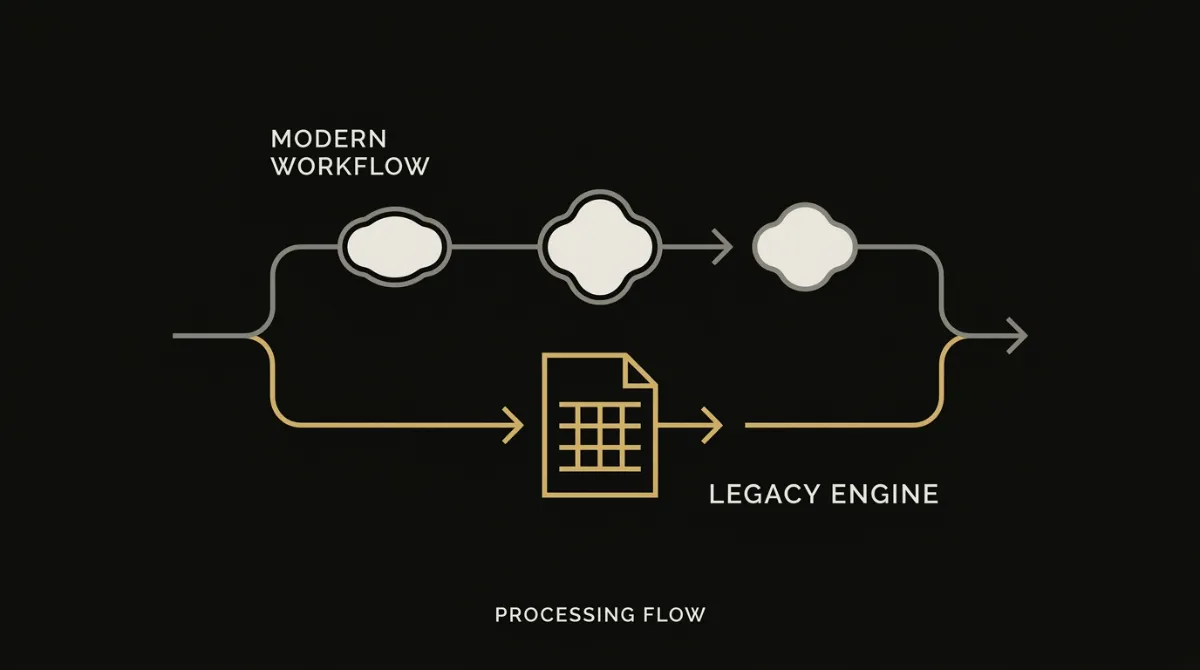
The split matters because not every Outlook client behaves the same way. Outlook for Mac, Outlook.com, the mobile apps, and New Outlook for Windows use browser-style rendering engines and are generally much easier to work with than classic Windows desktop Outlook.
What the Word engine cannot do
Word was built for documents, not modern HTML email, so its CSS support is narrow and uneven. Confirmed limitations include no reliable background-image support, no true border-radius, unreliable margin:auto, and a long-running table quirk where a row can inherit the largest cell padding in that row.
That is why an email can look fine in a browser preview and still break in classic Outlook on Windows. A centered block may stop centering, a rounded button may turn square, a background image may disappear, and uneven cell spacing can suddenly spread across the whole row.
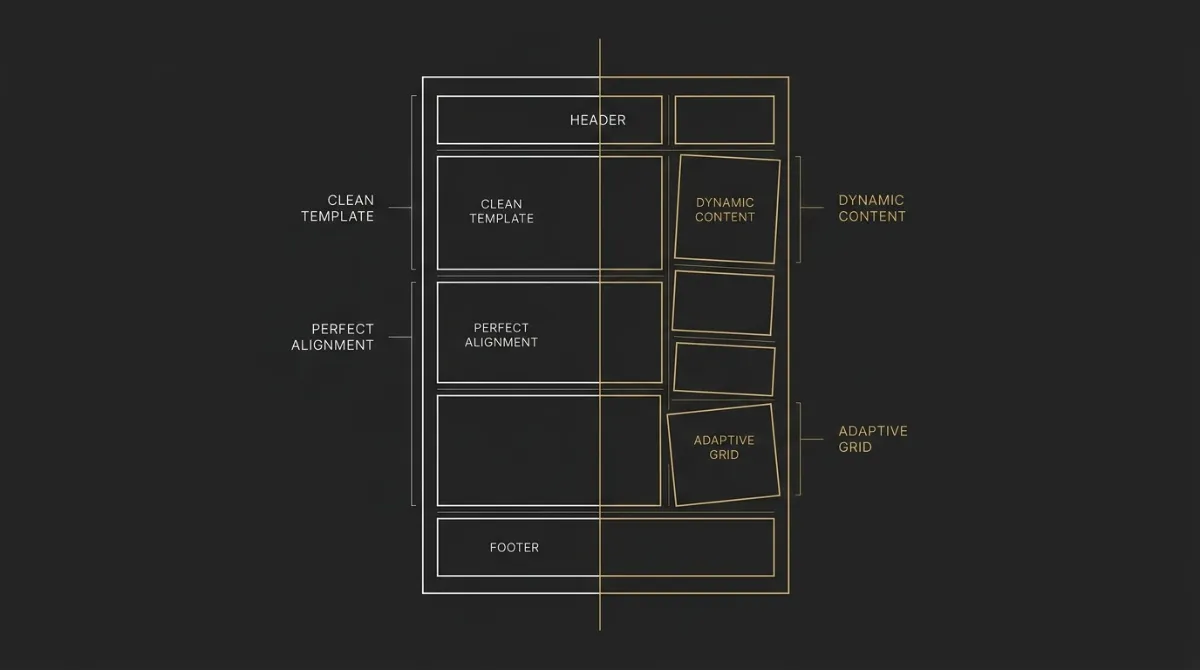
Once you understand that, the usual Outlook workarounds stop looking random. You use tables because Word handles table structure more predictably than modern CSS layout, MSO conditional comments because Outlook needs its own branch of code, and VML because Word cannot draw the rounded buttons and background treatments that normal CSS can handle elsewhere.
The Five Things Word Breaks Most Often
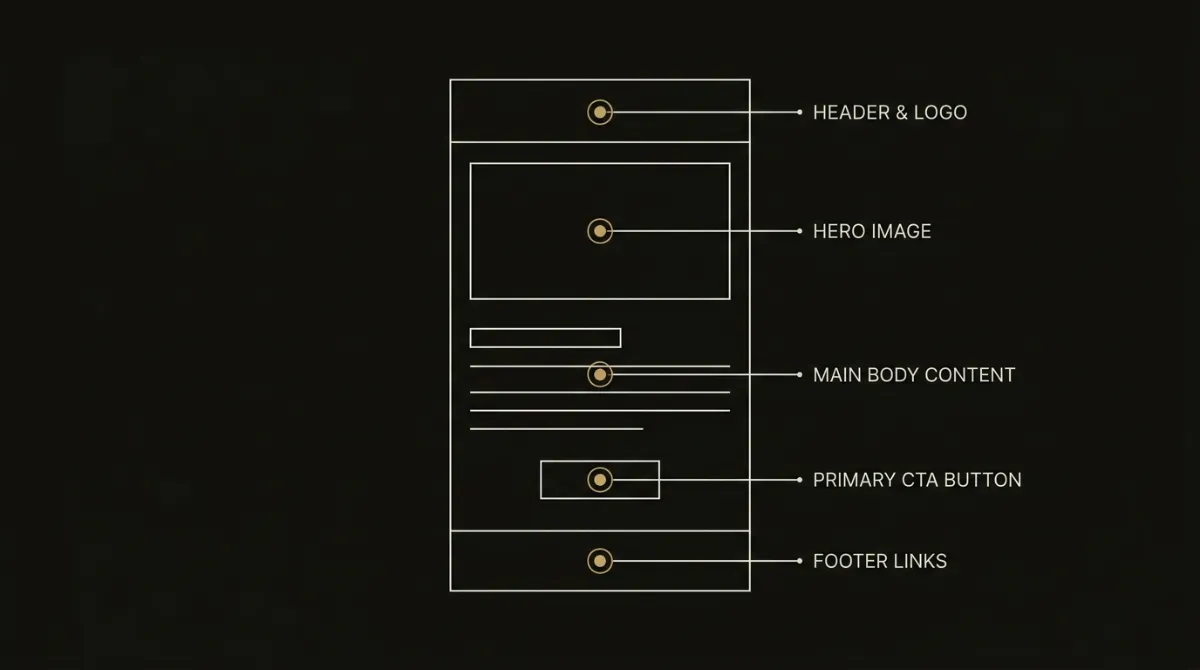
Unreliable CSS: border-radius, box-shadow, gradients
The symptom is familiar: a button loses its rounded corners, a soft shadow disappears, or a gradient turns into a flat fill. In classic Outlook on Windows, those effects are not dependable because Word does not support them the way a browser does.
The rule is simple: treat border-radius, box-shadow, and gradients as optional polish, never as load-bearing structure. If the design still works when those styles disappear, you are safe.
Background images need VML
The symptom here is a hero or banner that looks right everywhere else, then drops its background image in classic Outlook. Desktop Outlook support for CSS background images is weak enough that you cannot trust it.
The fix is to code an Outlook-specific fallback with VML inside MSO conditionals. If the background image is essential to the design, build the fallback; if it is decorative only, make sure the section still works with a solid background color.
Padding stacked twice overflows the row
The symptom is a layout that suddenly widens, shifts, or breaks alignment in Outlook even though the math looked fine in a browser preview. This usually happens when padding is applied in more than one horizontal layer.
The failure pattern is specific: a wrapper <td style="padding:0 32px"> containing an inner table whose <td> also has padding:0 32px sums to ~664px and overflows the 600px container. The rule is to apply horizontal padding once per row, not on both the wrapper and the inner cell.
A late charset can blank the render
The symptom is nastier than a spacing bug: Outlook can misread characters or fail to render content cleanly when the document head is ordered badly. This is one of those boring setup details that causes outsized damage.
The fix is strict: <meta charset="UTF-8"> should be the first child of <head>, before the viewport tag, title, fonts, or style blocks. Put charset first and leave it there.
Phantom whitespace under block images
The symptom is a thin gap under an image that should sit flush, most often in logo rows, hero art, or full-width banners. Outlook and Yahoo are well known for injecting this extra space.
The fix is structural, not visual: on image-only cells, set line-height:0; font-size:0;. Pair that with display:block on the image itself, and the unwanted gap usually disappears.
Sizing Images Correctly in Outlook
Outlook on Windows ignores CSS image resizing more often than people expect and tends to render images at their native dimensions. That is why a retina asset that was meant to scale down cleanly can suddenly blow up in classic Outlook and wreck the layout.
The fix is mechanical: give every <img> an explicit pixel width attribute, then pair it with style="display:block; max-width:100%; height:auto; border:0;". That combination lets Outlook size the image correctly while still keeping it fluid elsewhere, and descriptive alt text matters too because Outlook may block images by default, leaving the alt text as the first thing the reader sees.
MSO Conditional Comments and VML Buttons
How MSO conditional comments work
MSO conditional comments are Outlook-only branches in your email HTML. You wrap code in <!--[if mso]> ... <![endif]-->, and classic Outlook desktop on Windows reads that block while other clients ignore it.
That matters because the fix can live only where the problem exists. You can also target specific Outlook desktop versions with MSO numbers, and the numbering is not intuitive, for example mso 16 covers Outlook 2016, 2019, and classic Microsoft 365 desktop Outlook.
The bulletproof VML button pattern
Because Word does not support real border-radius, a standalone CTA cannot rely on normal CSS alone in classic Outlook. The stable pattern is to render the button twice: a <v:roundrect> inside [if mso] for Outlook, plus a normal live <a> tag for every other client.
The supporting detail matters too. The surrounding <td> carries bgcolor so the button seam survives forced dark-mode recoloring and other Outlook quirks, while the non-Outlook <a> keeps the live, editable HTML version everywhere else. For the full production snippet, use a dedicated bulletproof buttons reference, because this is one pattern where getting every attribute right matters.
Stopping Long URLs and IDs From Widening the Layout
One quieter Outlook bug is token overflow. Long unbroken strings, such as full URLs, transaction IDs, or legal identifiers like LOPDPGDD and RGPD, can force Outlook to widen the cell past 600px and break the whole layout even when the rest of the code is clean.
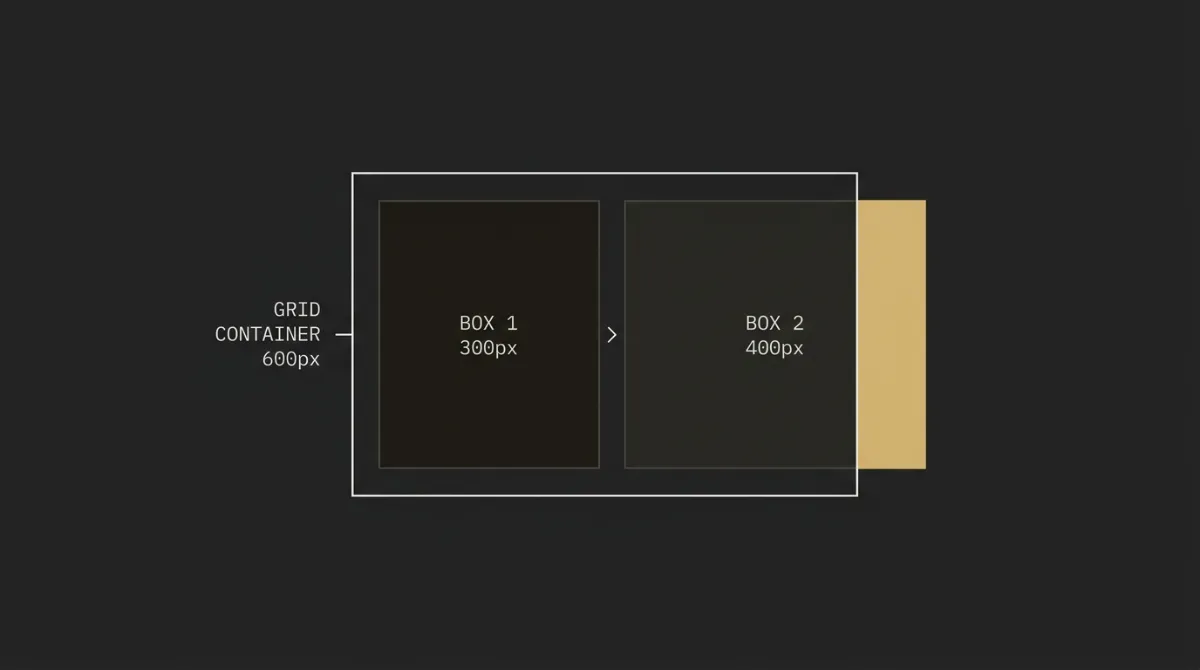
The fix is to apply word-break:break-word; overflow-wrap:break-word; on legal and other long-copy cells so those strings can wrap instead of stretching the container. Keep that copy in sentence case and left-aligned or centered short lines, never justified, because justification plus long tokens is an easy way to make Outlook rendering worse.
A Pre-Send Checklist for Outlook-Safe Email
Before you send, run a quick structural check against the Outlook-specific failure points that do the most damage. This sequence starts with layout and ends with edge-case copy issues, which is the right order if you want to catch the big breaks first. You can then paste the markup into a free HTML email tester to score Outlook width, clipping and inline CSS before anything goes out.
Audit row width math so every horizontal row stays at or under 600px, with horizontal padding applied once per row.
This catches the classic Outlook overflow where wrapper padding and inner cell padding stack on top of each other.
✓ Check for: wrapper padding plus inner table width plus cell padding plus columns totaling no more than 600px.
Place <meta charset="UTF-8"> as the first child of <head> before viewport, title, fonts, or style blocks.
This reduces the risk of Outlook parsing the document badly or rendering content inconsistently.
✓ Check for: charset first, then viewport, then title and any font or style assets after that.
Set an explicit pixel width on every image, plus display:block; max-width:100%; height:auto; border:0;.
This keeps Outlook from rendering retina or scaled-down assets at their native size and blowing up the layout.
✓ Check for: each <img> having a width attribute, the fluid style set, and meaningful alt text.
Zero line-height and font-size on image-only cells to remove phantom gaps under block images.
This is the small fix that keeps logos, banners, and hero art from showing mysterious extra space in Outlook.
✓ Check for: image-only <td> cells using line-height:0; font-size:0;.
Render standalone buttons with a VML <v:roundrect> for Outlook and a live <a> fallback for every other client.
This keeps rounded CTA buttons intact where Word cannot draw them with normal CSS.
✓ Check for: an [if mso] VML branch, a non-MSO live link, and bgcolor on the button cell.
Add word-break:break-word; overflow-wrap:break-word; to legal and long-token copy cells.
This prevents full URLs, transaction IDs, and legal identifiers from forcing the container wider than 600px.
✓ Check for: long-copy cells that wrap safely and legal text that stays sentence case and non-justified.
Test Before You Send
Outlook testing matters because Outlook is not one environment. You are dealing with classic desktop variants like Outlook 2010, 2016, and classic Microsoft 365 on Windows, plus New Outlook and high-DPI cases such as 120 DPI scaling, and they do not all break in the same way. Outlook accounts for a relatively small share of total opens, roughly in the mid-single digits by recent Litmus direction, but that share is heavily concentrated in corporate inboxes where broken rendering is more visible and less forgivable.
Covering all of that without a paid rendering service has its own method, and it is a short one. How to test HTML email in Outlook walks the free three-tier ladder, which Outlook versions are worth your time, and the six things to read in every render.
The real problem is not that any single fix is hard. It is that these rules are easy to miss when you are moving fast, and one missed padding declaration or one wrongly sized image can break every classic Outlook version at once. That is why Outlook-safe email usually stops being a one-off coding task and starts becoming a system problem.
Make Outlook-Safe the Default, Not a Per-Send Chore
The takeaway is simple: these are structural rules, not cosmetic tweaks. Row math, charset order, image attributes, phantom-whitespace fixes, VML buttons, and long-token wrapping are the same checks you need on every send, whether it is a promo, newsletter, welcome email, or transactional update.
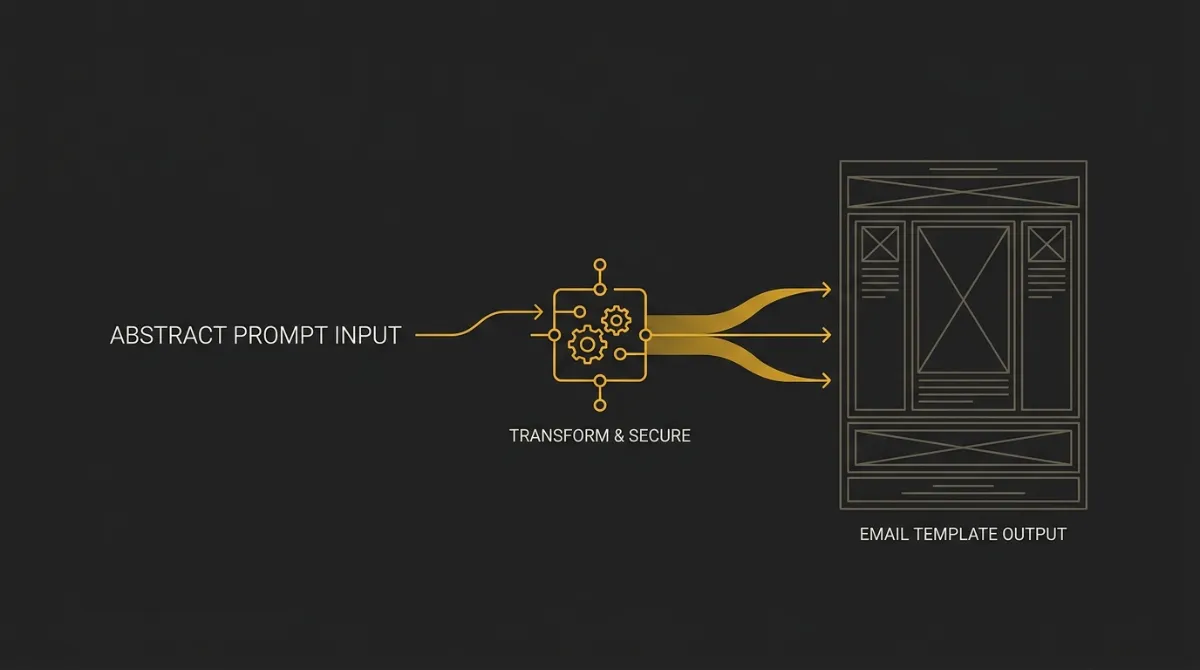
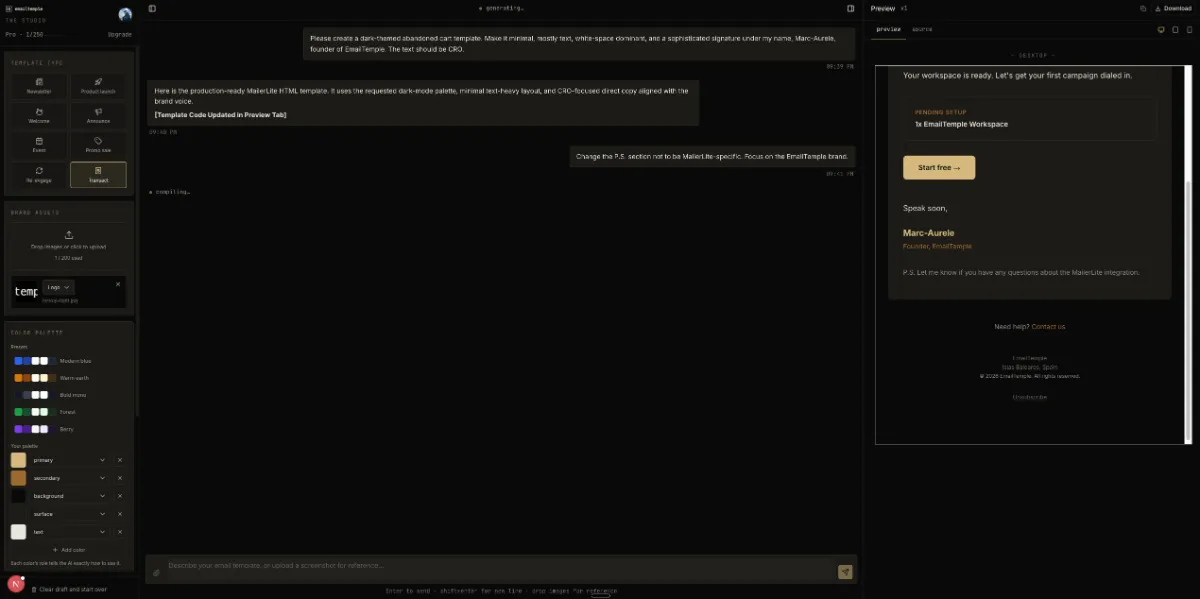
That is the practical angle behind EmailTemple. Instead of remembering each rule every time, those non-negotiables are baked into the architect prompt plus a server-side layout check, so the HTML is Outlook-safe by construction, not by last-minute cleanup. Generate your branded template for free and test it in Outlook.
Frequently Asked Questions
Why does my email look fine in Gmail but broken in Outlook?
Your email looks fine in Gmail because Gmail behaves more like a modern web client, while classic Outlook on Windows uses the Microsoft Word rendering engine. That engine handles HTML and CSS differently, so code that feels normal in Gmail can break spacing, buttons, images, and row width in Outlook.
In practice, Gmail tolerates more modern CSS and fluid layouts. Outlook needs stricter table structure, inline styles, and Outlook-specific fallbacks.
Which versions of Outlook cause the most rendering issues?
The versions that cause the most rendering issues are classic Outlook desktop on Windows, especially Outlook 2007 through 2019 and classic Microsoft 365 desktop Outlook. Those versions use the Word engine, which is where most of the well-known bugs come from.
New Outlook and Outlook for Mac are generally less problematic. They still need testing, but they are not the main reason email developers still code defensively for Outlook.
Does Outlook support border-radius and background images?
Classic Outlook desktop on Windows does not support border-radius reliably, and CSS background images are also unreliable there. If those styles matter to the design, you need a fallback rather than assuming normal browser behavior.
That usually means VML for Outlook-specific rendering or graceful degradation where the email still works without the effect. Rounded corners, shadows, and backgrounds should be treated as optional polish, not structural dependencies.
Why does Outlook add white lines or gaps in my email?
Outlook adds white lines or gaps because its rendering engine introduces spacing artifacts that do not appear in other clients. One common cause is phantom whitespace under block images, and another long-standing theory is that odd-numbered heights can trigger random white lines in some Outlook layouts.
For image gaps specifically, the direct fix is to set line-height:0; font-size:0; on image-only cells. That removes the extra baseline space Outlook likes to invent under images.
How do I make rounded buttons work in Outlook?
To make rounded buttons work in Outlook, render them twice. Use a VML <v:roundrect> inside an MSO conditional for Outlook desktop, then use a normal live <a> button fallback for every other client.
That pattern works because Outlook cannot draw proper rounded buttons with normal CSS alone. The button cell should also carry bgcolor so the shape holds together better under Outlook and dark-mode recoloring.
Do I still need tables for Outlook in 2026?
Yes, you still need tables for classic desktop Outlook in 2026. As long as Outlook on Windows keeps using the Word engine, table-based layout remains the safe foundation for predictable rendering.
That does not mean every client needs tables for the same reason. It means Outlook still does, and if Outlook is in your audience, the safest path is still structured nested tables with presentational markup.