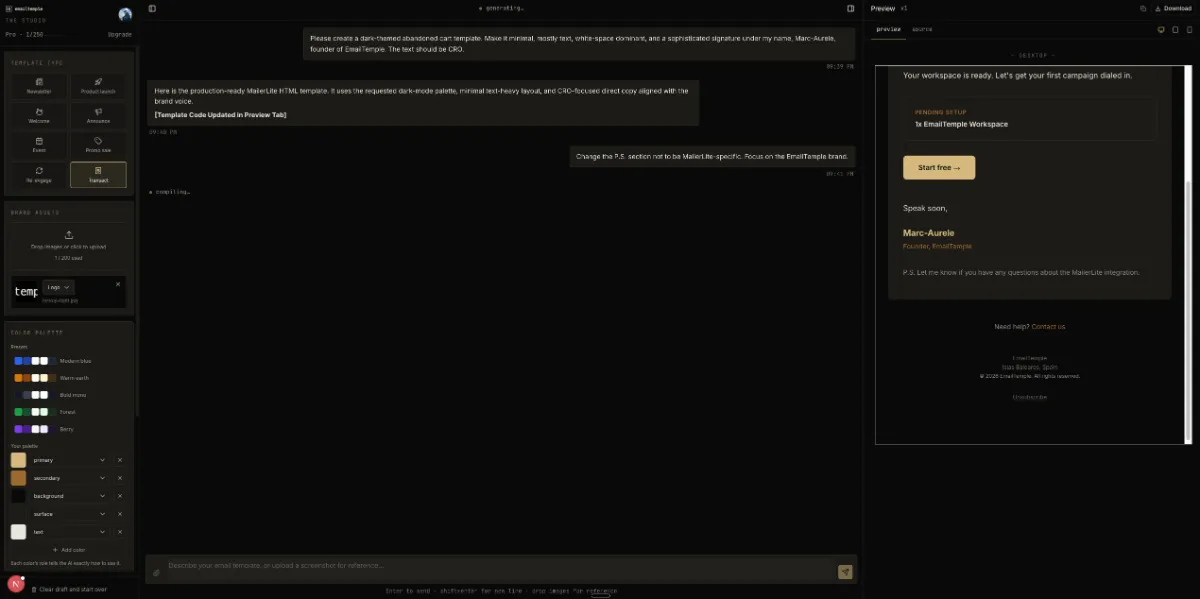

Most people who ask an AI for an HTML email prompt get back something that looks fine in the ChatGPT preview and then falls apart the moment it lands in an inbox. That gap is structural: a naked prompt tests what the model already knows about email HTML, while a real system wraps that prompt in rules, constraints, and a validation pass that catches what the model gets wrong. It matters more than most senders realize.
The 8 rules below aren’t theory: they’re lifted directly from the production architect prompts and shared design spec that EmailTemple runs behind every generation, ordered from the failure modes that wreck an email fastest (layout collapse, Outlook rendering) down to the polish-level details (spacing, tone) that separate “renders” from “looks considered.” For a broader look at what AI can and can’t do reliably in this space, see can AI actually write HTML email.
What most guides on this topic skip is the layer that runs after the model responds. Prompting alone can steer an AI toward better habits, but it can’t guarantee compliance on every generation. The rules that catch what a prompt misses, things like clipping thresholds, font-link injection, and dark-mode background duplication, are a deterministic safety net, and almost nothing written about HTML email prompts covers it.
TL;DR: The HTML Email Prompt Rules That Matter Most
HTML email prompt verdict: the single biggest win is forcing table-based layout with inline CSS; the rule that saves your campaign is a visible unsubscribe + address; the rule everyone forgets is a self-check at the end.
- For Outlook survival: table-only layout with inline CSS, plus VML fallback buttons for rounded corners
- For dark mode: declare every background color twice, once as an HTML attribute and once as inline CSS, so recoloring clients respect at least one
- For deliverability: keep the document under roughly 80KB and never use base64 image data, both of which trip Gmail’s clipping threshold
- For compliance: a visible unsubscribe link and physical mailing address in the footer, never hidden or set to zero opacity
- For consistency: a final self-check pass that verifies contrast, inline styles, and zone backgrounds before the HTML ships
Table-based layout with inline CSS matters most because it’s the one rule that determines whether the email renders at all in Outlook, where Word’s rendering engine ignores modern CSS layout methods entirely. Everything else on this list, dark mode, file size, compliance, is a refinement layer that assumes the structural foundation already holds. For the deeper mechanics behind why AI-generated HTML breaks in the first place, see why AI-generated HTML breaks in Outlook.
How We Chose These HTML Email Prompt Rules
Every rule on this list had to clear four bars before it made the cut. These same four criteria show up in each entry’s “why it matters” and “failure mode” notes, so the reasoning stays consistent from rule 1 to rule 8 instead of drifting into opinion.
Maps to a real rendering failure
Each rule traces back to a documented, reproducible way an email breaks, not a stylistic preference. Outlook on Windows renders with Microsoft Word’s engine rather than a browser engine, which is why table-based layout, VML buttons, and specific padding workarounds exist as rules at all.
Works without media queries or style blocks
A rule only counts if it holds up even when the client strips out <style> blocks entirely. Gmail webmail and several mobile clients drop style blocks in specific contexts (CSS errors, oversized blocks, non-primary account access), so any rule that depends on a style block firing correctly was disqualified in favor of inline-first approaches.
Deterministic enough to enforce
A rule earns its place only if it can be checked mechanically, pass or fail, rather than judged by taste. This is what makes a rule suitable for a closing self-check pass: contrast ratios, file size thresholds, and duplicate background declarations are all checkable; “looks polished” is not.
Client coverage across Outlook, Gmail, Apple, dark mode
Rules were weighted toward the clients that account for the most real opens. Apple Mail and Gmail together account for roughly 70% of opens, dark mode accounts for around a third of opens across trackable email, and Outlook, despite its smaller share, causes a disproportionate number of rendering failures, so all four get dedicated coverage rather than an afterthought.
HTML Email Prompt Rules Comparison Table
The table below lines up all 8 rules on the same five dimensions, so you can scan what to encode in the prompt, what it prevents, and which client is most at risk if you skip it. Rules that can’t be trusted to a prompt alone are flagged for enforcement in a deterministic safety-net layer instead.
| Rule | What to encode in the prompt | Failure mode it prevents | Primary client affected | Enforce in prompt or safety-net |
|---|---|---|---|---|
| Table-based layout | Nested HTML tables only, no flex/grid/CSS columns | Broken or collapsed layout | All clients, worst in Outlook | Prompt |
| Inline all load-bearing CSS | Style in the style="" attribute, not <style> blocks | Unstyled, plain-text-looking email | Gmail webmail, mobile apps | Prompt |
| 600px fluid backbone | width="100%" plus max-width:600px, never a fixed width | Horizontal scroll on narrow screens | Mobile clients, all | Prompt |
| Bulletproof VML buttons | v:roundrect inside [if mso], plus a live <a> for everyone else | Square, missing, or unclickable CTA | Outlook on Windows | Prompt |
| Web-safe font fallback stacks | Brand font first, ending in web-safe families like Arial, sans-serif | Wrong font (e.g. Times New Roman) rendering | Outlook, Yahoo Mail | Prompt |
| Dark-mode dual backgrounds | bgcolor attribute plus inline background-color on every zone | Inverted seams, illegible text | Gmail mobile, Outlook dark mode | Prompt + safety-net |
| Under 80KB / no base64 | No base64 image data, no unbounded repeated markup | Gmail clipping at ~102KB, hidden unsubscribe/CTA | Gmail | Safety-net |
| Visible unsubscribe + address | Footer link never hidden or zero-opacity, plus physical mailing address | CAN-SPAM / GDPR non-compliance | All clients | Prompt + safety-net |
1. Force Table-Based Layout, Not Flex or Grid
Overview
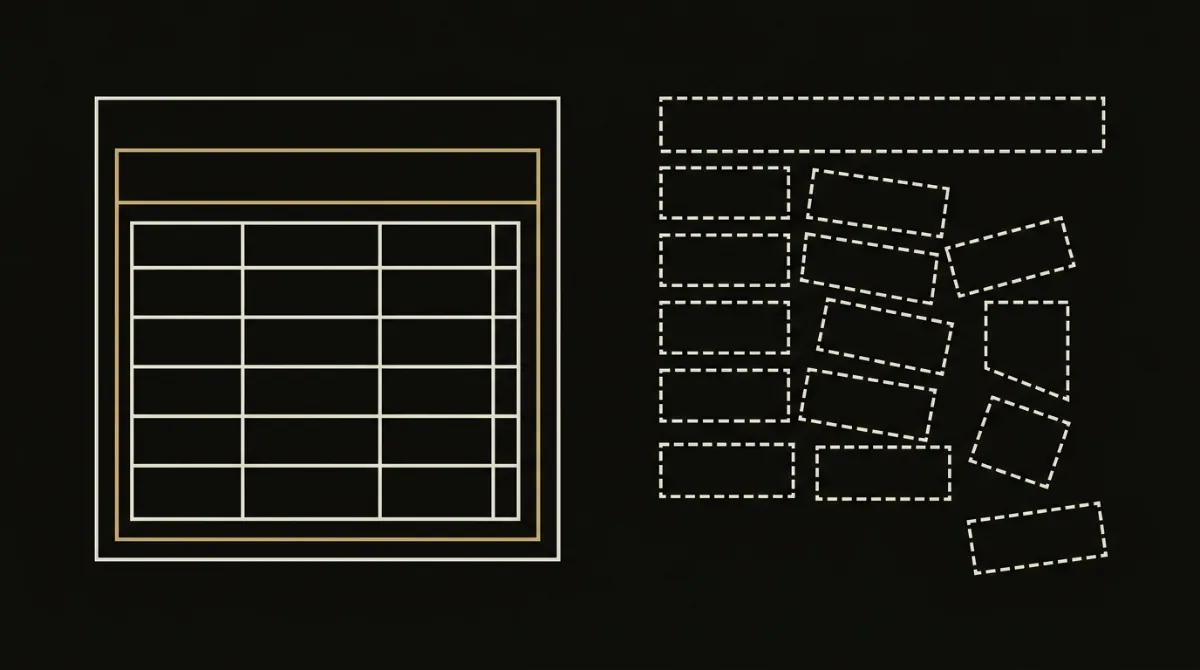
Table-based layout is the structural foundation every HTML email prompt must demand.
Every other rule on this list assumes the layout holds together first, so this is the one to get right before anything else. If the prompt allows the model to reach for modern CSS layout, everything built on top of it (typography, spacing, dark mode) inherits a broken foundation.
Best for: anyone prompting an LLM for campaign HTML, regardless of ESP.
What to put in the prompt
Tell the model explicitly: use nested HTML <table> elements exclusively for layout, with every layout table carrying role="presentation", cellspacing="0", cellpadding="0", and border="0". Ban flexbox, CSS grid, and CSS columns outright.
Why it matters
Flexbox and CSS floats don’t render correctly across email clients, so any layout instruction that leans on them is a guaranteed failure. role="presentation" carries a second benefit: it tells screen readers the table is for layout, not data, which keeps the email accessible.
Failure mode it prevents
Without this rule, layouts collapse or render broken in Outlook and older clients that never adopted flex or grid support.
Who it’s for
Anyone prompting an LLM for campaign HTML, whether they’re building one-off sends or full templates for an ESP.
2. Inline All Load-Bearing CSS
Overview
Inline CSS is the difference between an email that looks designed and one that arrives as unstyled plain text.
Any style that carries real weight, typography, color, layout, has to live in the markup itself, not in a stylesheet the client might discard. This is one of the few rules that gets repeated across every serious email-coding reference for a reason: it’s not optional.

Best for: prompters who’ve watched a carefully designed email arrive looking like a Notepad file.
What to put in the prompt
Instruct the model to set font size, weight, color, line-height, and layout as inline style="" attributes on every element. Reserve <style> blocks strictly for media queries, resets, dark-mode overrides, and hover states, and require an inline fallback for anything declared there.
Why it matters
Many email clients strip <style> blocks outright. Gmail specifically drops them when it hits a CSS error, when the block exceeds roughly 8KB, or when mail is accessed through a non-Gmail account inside the Gmail app.
Failure mode it prevents
Without inline CSS, a stripped style block leaves the email rendering as unstyled fallback text, no color, no spacing, no type hierarchy.
Who it’s for
Anyone who has generated an HTML email prompt output that looked right in ChatGPT’s preview and then landed flat and unstyled in an actual Gmail inbox.
3. Build a 600px Fluid Backbone
Overview
A fluid backbone is what keeps an email from overflowing the moment it hits a phone screen.
This rule is the reason an email shrinks cleanly on a 320px viewport instead of forcing a horizontal scrollbar. It works even when the client strips out <style> blocks, which is exactly why it has to be structural rather than layered on through a media query.
Best for: prompters whose emails look fine on desktop and break the moment someone opens them on a phone.
What to put in the prompt
Instruct the model to set width="100%" as an HTML attribute plus max-width:600px as an inline style on the body container, never a fixed width="600". Every nested table inside should also use width="100%", and the layout must shrink-fit any viewport from 320px upward with no horizontal scroll. Add a check that every row’s combined padding and column widths sums to 600px or less.
Why it matters
This backbone works without relying on media queries or a surviving <style> block, which matters because roughly half or more of email opens happen on mobile.
Failure mode it prevents
Skipping this produces overflow and horizontal scrollbars, especially in Outlook and on narrow phone viewports where a fixed-width container refuses to shrink.
Who it’s for
Anyone whose HTML email prompt output rendered fine in the AI’s preview pane and then overflowed the screen the moment a recipient opened it on their phone.
4. Require Bulletproof VML Buttons
Overview
A CTA button that looks fine everywhere except Outlook isn’t a working CTA.
Rounded corners, gradients, and shadows on buttons all depend on CSS that Outlook simply doesn’t render, so a plain <a> styled with border-radius shows up square, or in some cases fails to render at all. This is the rule that determines whether your primary conversion action actually works for the client sitting at roughly 5-6% of opens but disproportionate rendering failures.
Best for: prompters whose call-to-action button breaks specifically in Outlook and nowhere else.
What to put in the prompt
Instruct the model to render every standalone CTA twice: a <v:roundrect> VML shape wrapped in an [if mso] conditional for Outlook, carrying href, arcsize, strokecolor, and fillcolor, alongside a live <a> styled with display:inline-block for every other client. The button’s <td> should also carry a bgcolor attribute so the fill survives dark-mode recoloring.
Why it matters
Outlook on Windows renders with Microsoft Word’s layout engine, not a browser engine, so it has no support for border-radius, unreliable margin: auto, and no way to draw a rounded shape from CSS alone.
Failure mode it prevents
Without the VML fallback, buttons in Outlook render square, unstyled, or in some cases don’t display as a clickable button at all.
Who it’s for
Anyone who prompted for a “rounded CTA button” and got back something that looked right until a recipient opened it in Outlook.
5. Pair Every Font With a Web-Safe Fallback Stack
Overview
A font stack without a web-safe fallback is a bet that every client will cooperate, and most won’t.
This is a smaller rule than layout or Outlook buttons, but it’s the one that quietly wrecks brand consistency: the email still renders, it just doesn’t look like your brand anymore. A documented test of AI-generated email HTML found exactly this failure showing up repeatedly.
Best for: prompters who specified a brand font and got back something else entirely.
What to put in the prompt
Instruct the model to end every font-family declaration with a full web-safe fallback stack, for example 'Brand Font', -apple-system, BlinkMacSystemFont, 'Segoe UI', Helvetica, Arial, sans-serif. Make clear the email must never depend on the web font loading for core usability, restrictive clients should still look intentional without it.
Why it matters
Outlook and Yahoo Mail are among the clients that don’t reliably load custom web fonts, so anything styled to depend on one falls back to whatever the client substitutes. A 2026 study testing AI-generated email HTML documented this exact failure: output that requested a specific brand font rendered in Times New Roman instead once opened in Outlook.
Failure mode it prevents
Without a proper fallback stack, type renders in a generic or mismatched font, most visibly Times New Roman, undercutting the typographic tuning the rest of the email was built around.
Who it’s for
Anyone whose HTML email prompt asked for a specific brand typeface and got back an email that reads like a default Word document once it lands in Outlook.
6. Declare Every Background Twice for Dark Mode
Overview
Dark mode isn’t an edge case anymore, it’s a default reading condition your prompt has to plan for.
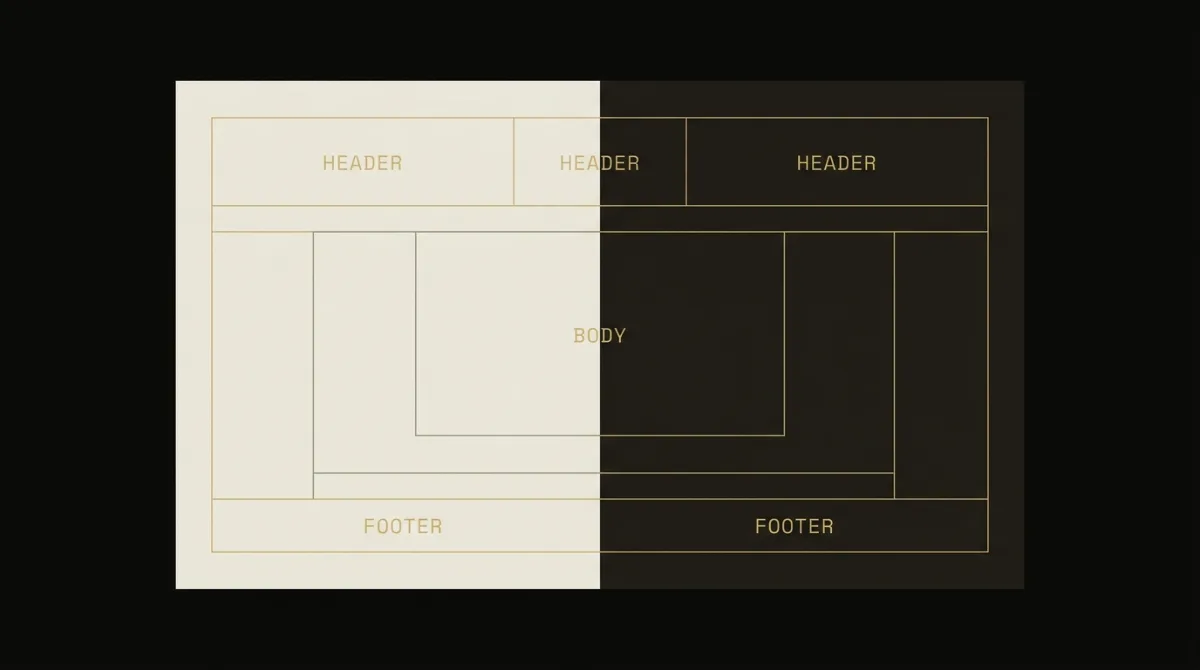
Roughly a third of trackable email opens happen in dark mode, and clients don’t handle it consistently: some leave your colors alone, some partially invert them, and some fully invert light backgrounds to dark. A prompt that only specifies one background declaration is gambling on which behavior it’ll get.
Best for: prompters whose clean light-mode design turns into an unreadable mess once a recipient’s phone is set to dark mode.
What to put in the prompt
Instruct the model to declare every zone background twice on the same element, once as a bgcolor HTML attribute and once as an inline background-color style. Add instructions to avoid pure #FFFFFF and pure #000000 on large surfaces and body text, and to keep all copy as live HTML rather than baked into an image.
Why it matters
Clients that force dark mode tend to honor one declaration method or the other, not always both, so duplicating the background keeps zone seams visible no matter which one wins. With about a third of opens happening in dark mode, this isn’t a nice-to-have, it’s baseline coverage.
Failure mode it prevents
Skipping this produces inverted or invisible zone seams, logos that vanish against a recolored background, and text that becomes unreadable once a client applies its own dark-mode logic.
Who it’s for
Anyone whose HTML email prompt produced a template that looked polished in light mode and turned into a visual mess the moment dark mode kicked in.
7. Keep the Email Under 80KB With No Base64
Overview
A bloated HTML file doesn’t just load slowly, it can get chopped off entirely before the reader sees the part that matters.
This rule is easy to skip because it never shows up in a preview pane, it only shows up once the email actually lands in Gmail. By the time you notice, the unsubscribe link is already gone.
Best for: prompters shipping image-heavy or asset-dense emails without checking final file size.
What to put in the prompt
Instruct the model to target a total document size under roughly 80KB, ban base64 data-URI images outright, and prohibit unbounded runs of repeated characters or markup. Require hosted https:// image URLs instead of inline image data.
Why it matters
Gmail clips any message over roughly 102KB of HTML, replacing everything past that point with a “[Message clipped]” link, and base64-encoded images bloat file size fast while also hurting deliverability.
Failure mode it prevents
Without this rule, an email can get clipped by Gmail, which hides everything below the cut point, including the closing CTA and the unsubscribe link required for compliance.
Who it’s for
Anyone whose HTML email prompt generated a visually rich template that got silently truncated the moment it reached a real Gmail inbox.
8. Mandate a Visible Unsubscribe Link and Physical Address
Overview
The rule that saves your campaign legally isn’t a design choice, it’s a footer that never gets optional.
Every other rule on this list is about rendering. This one is about whether the email is even legal to send. A prompt that leaves the footer to the model’s discretion is gambling with CAN-SPAM and GDPR compliance, not just aesthetics.
Best for: any marketer sending to a real list, not just a test inbox.
What to put in the prompt
Instruct the model to include a visible unsubscribe link, never hidden, never set to zero opacity, plus a physical mailing address in the footer. Specify the exact token to use: a portable placeholder like [UNSUBSCRIBE_URL] for ESP-agnostic output, or the target ESP’s native tag if one is specified.
Why it matters
CAN-SPAM and GDPR both require a working opt-out and sender identification on marketing email, and some ESPs auto-append their own default footer or strip a custom one if the required tags aren’t present, so this needs to be encoded explicitly rather than assumed.
Failure mode it prevents
Skipping this produces a legally non-compliant send, and if the email also runs long, a clipped or missing unsubscribe link buried below the Gmail fold compounds the problem.
Who it’s for
Any operator prompting for an HTML email prompt that’s actually going out to a subscriber list, not just a one-off internal test.
For the layer that catches this even when the prompt itself gets it wrong, see how EmailTemple’s safety net enforces compliance automatically.
How to Choose the Rules for Your HTML Email Prompt
Applying all 8 rules at once in a single flat instruction tends to produce a prompt the model partially ignores. The fix is to layer context deliberately and accept that some enforcement has to happen after the model responds, not inside the prompt itself.
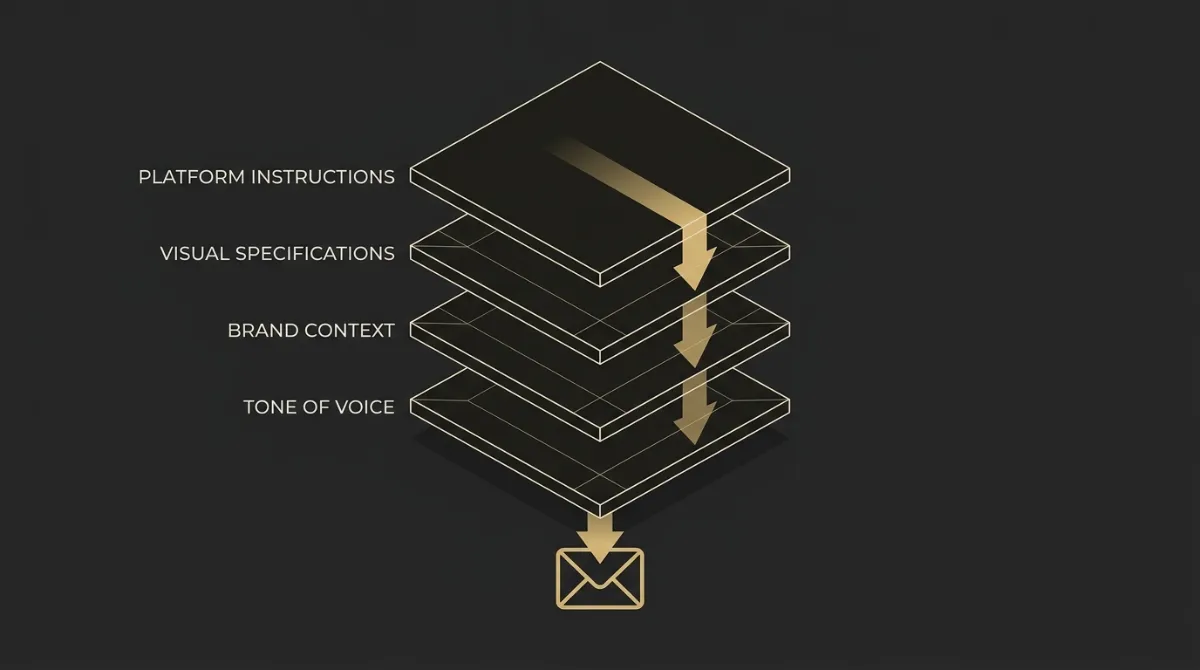
Layer your context before your rules
Stack the prompt in distinct layers rather than one long paragraph: a platform-specific instruction set (Mailchimp, ActiveCampaign, or a portable universal target), a shared visual design spec covering layout and typography, brand context (colors, fonts, assets), a tone-of-voice preset, a template archetype (newsletter, promo, welcome), and finally the live brief for this specific send. Each layer narrows the model’s decisions before it ever touches the actual copy.
Set precedence: platform rules vs visual spec
When instructions conflict, platform-specific rules win on platform concerns like merge-tag syntax and editable regions, while the shared visual spec wins on design decisions like hero structure, spacing, and color. Deciding this order in advance stops the model from guessing which instruction takes priority when two rules brush up against each other.
End the prompt with a self-check
Close the prompt with an explicit checklist the model has to verify before returning output: portability of personalization tokens, table-based rendering, the 600px width math, WCAG AA contrast on body text, and the compliance footer. A self-check clause catches violations of the rules above that the model would otherwise skip silently. Our ChatGPT email prompts include a ready-made audit prompt that runs exactly this pass.
Know what a prompt can’t do alone
Some of this can’t be guaranteed by prompting alone. Re-injecting font links, enforcing the exact compliance block, and owning header and footer chrome are the kind of checks that need to run after the model responds, as a deterministic pass the model doesn’t get final say over. This layering, precedence, and post-model safety-net enforcement is exactly what EmailTemple automates behind every generation; you can approximate the stack manually with the rules above, or generate your branded template for free and skip straight to production-ready output.
Frequently Asked Questions
What is an HTML email prompt?
An HTML email prompt is a layered instruction set that directs an AI model to produce the actual markup for an email, not just written copy. It goes beyond describing what the email should say and specifies how it needs to be built: table-based layout, inline CSS, dark-mode handling, and client-specific rendering rules.
A well-formed one wraps a plain content brief in the technical constraints that keep the output from breaking once it leaves the chat window and lands in a real inbox.
Can ChatGPT or Claude write production-ready email HTML?
Not reliably from a plain, zero-shot request. These models write email copy well, but asking them to generate production HTML without scaffolding tends to produce output that breaks in Outlook specifically.
A 2026 study testing ChatGPT, Claude, and Gemini on this exact task found that 8 of 9 AI-generated emails had at least one Outlook rendering failure. Wrapping the request in the kind of rules covered in this list narrows that gap considerably, though it doesn’t eliminate the need for a validation pass afterward.
Why does AI-generated email HTML break in Outlook?
Outlook on Windows renders HTML using Microsoft Word’s layout engine rather than a standard browser engine. Word’s engine has no support for border-radius, doesn’t reliably handle flexbox or CSS grid, and applies padding to table cells inconsistently.
This is why a model trained mostly on general web development defaults to modern CSS patterns that look fine in a browser preview and then collapse or square off the moment Outlook opens the same file.
Do I need to inline CSS if my ESP auto-inlines?
Yes, still write the prompt to output inline CSS directly rather than relying on the ESP’s inliner to catch everything. Auto-inliners are good at converting a clean <style> block into inline attributes, but they don’t add dark-mode overrides, media-query fallbacks, or fix layout issues baked in from the start.
Treating inline CSS as the model’s job, not a downstream fix, keeps the HTML correct even if you skip the ESP’s processing step or move the file to a different platform.
How do I stop my email from getting clipped in Gmail?
Keep the total HTML document under roughly 80KB and avoid base64 image data entirely, since both are common ways file size balloons past Gmail’s clipping threshold. Gmail cuts off anything past approximately 102KB and replaces it with a “[Message clipped]” link, which can hide your unsubscribe link and final CTA.
Placing the unsubscribe link and any critical closing content earlier in the document, rather than as the very last thing in a long footer, adds a margin of safety on top of the size limit.
What’s the shortest HTML email prompt that still works?
There isn’t a single universal shortest version, but a condensed prompt that still holds up encodes the 8 rules from this list as compact bullet instructions, followed by a short self-check the model runs before returning output. Cutting further than that tends to drop coverage for whichever rule got left out, usually dark mode or the Outlook button fallback.
The self-check line matters more than trimming the rules themselves, since it’s what catches a rule the model silently skipped.
Does EmailTemple output MJML or plain HTML?
EmailTemple outputs clean, hand-editable HTML, not MJML. The HTML comes already inlined and structured with the table-based layout and Outlook fallbacks this list covers, so it’s ready to paste directly into an ESP’s custom HTML editor or hand to a developer without an extra compile step.