Here’s how to use ChatGPT to write an email that actually sounds like you and gets read.
Most of what fills an inbox isn’t hard to write, it’s just repetitive: a follow-up, a check-in, an announcement, a thank-you.
The skill isn’t crafting each one from scratch. It’s knowing how to draft fast, then how to build a setup that keeps every email on-brand without you re-explaining yourself each time.
This guide covers both levels. First, the fast path: a single prompt that gets you a usable draft in one shot. Then the system: a reusable ChatGPT setup that remembers your voice, your rules, and your formatting, so every email that comes out already sounds like your brand instead of a generic template.
The Fastest Way to Draft an Email in ChatGPT
The fastest way to use ChatGPT to write an email is to give it four things in one prompt: the purpose, the recipient’s context, the key points as a list, and the tone or length you want.
Skip these and you get a generic, forgettable draft that reads like a template.
Include them and the first output is usually usable with light edits, not a full rewrite.
What to give ChatGPT
Before you type a single word, gather these four inputs. They turn a vague request into a prompt ChatGPT can actually work with.
- Purpose: What the email needs to accomplish (follow-up, ask, apology, update, pitch).
- Recipient and context: Who you’re writing to, your relationship, and anything relevant to their situation.
- Key points: The specific facts, dates, or asks the email must include, listed as bullets, not a paragraph.
- Tone and length: How formal or casual it should sound, and roughly how long (three sentences vs. five paragraphs).
Each input removes a guess ChatGPT would otherwise have to make. Vague inputs force vague outputs, specific details force specific ones.
The 4-part prompt formula
Here’s a fill-in-the-blank template built around those four inputs. Copy it, swap the brackets, and paste it into ChatGPT.
Write an email as [your role/relationship to recipient].
Context: [one or two sentences on the situation].
It needs to cover:
- [point 1]
- [point 2]
- [point 3]
Tone: [formal/friendly/direct]. Length: [short/medium].
For example, a client follow-up might read: “Write an email as a freelance consultant following up with a client who went quiet after a proposal. Context: I sent pricing two weeks ago, no reply since. It needs to cover: a friendly check-in, a reminder of the proposal’s core value, and a low-pressure next step. Tone: warm but direct. Length: short.”
That single prompt gives ChatGPT purpose, context, points, and tone in one pass, which is exactly why it tends to produce a workable draft the first time. If the output misses the mark, don’t start over: tell ChatGPT what to change (“make it shorter” or “drop the second paragraph”) and it’ll revise in place.
One thing this prompt won’t fix on its own: how the email actually looks once it lands in an inbox. Good copy in a bare ESP template still reads as an afterthought, which is a separate problem worth solving once the words are right (our take on using AI to build the email itself covers that gap).
Step-by-Step: Writing an Email with ChatGPT
Writing an email with ChatGPT breaks into five steps: set the context, write a specific prompt, refine the output, fact-check the personal details, and send. Each step builds on the last, and skipping one is usually why a draft comes back generic or wrong.
Decide what the email needs to achieve before typing anything into ChatGPT. A clear goal (follow-up, request, reminder, apology, pitch) shapes every sentence that follows.
- Name the outcome you want: a reply, a booking, a signature, an acknowledgment
- Identify who’s reading it and what they already know
- Note any deadline or trigger event prompting the email
Feed ChatGPT the 4-part formula from the previous step: purpose, recipient context, key points, and tone or length. Vague prompts produce vague output, so specificity here does most of the work.
- List your key points as a short bullet list inside the prompt itself
- State the tone directly: “friendly but firm,” “formal,” “brief and warm”
- Ask for a subject line and body in one request to save a round trip
Treat the first response as a draft, not a finished message, and push back with follow-up instructions until the output matches your voice. ChatGPT responds well to short, direct correction prompts.
- Try “make it more concise” or “cut this by 30%” to tighten the message
- Try “less corporate” or “sound more like a person, not a brand” to loosen the tone
- Ask it to shorten the subject line separately if the body edit changes the hook
Read the draft line by line and swap in real names, dates, and details before this email goes anywhere near a send button. This is the step people skip, and it’s the one that causes the most damage.
- Confirm every name, company, date, and number against your actual records
- Remove generic filler phrases that make the message sound templated
- Add one detail only you would know, so the email reads as personally written
Do one final scan for tone and formatting, then send once the message reads like something you’d have written yourself. This last check catches leftover placeholder text or awkward line breaks from the copy-paste.
- Check the subject line still matches the final body after edits
- Confirm formatting survived the copy-paste into your email client
Step 1: Set the purpose and context
Setting the purpose means telling ChatGPT the single outcome this email needs to produce before you ask it to write anything.
A reminder email needs a different structure than a request for feedback, and ChatGPT can only match that structure if you say which one you’re sending.
This is also where you hand over the recipient’s context: their role, your relationship, and anything relevant they already know so the message doesn’t over-explain or under-explain.
Step 2: Write a specific prompt
A specific prompt uses the four-part formula covered earlier: purpose, recipient context, key points, and desired tone or length, all in a single message.
The more concrete the input, the less generic the output. A prompt that says “write a follow-up email” produces a forgettable draft, while one that lists the actual points to hit produces something closer to a finished message.
Asking for the subject line and body together also saves a full extra exchange, since you can judge tone and hook in one pass instead of two.
Step 3: Refine the tone and length
Refining is a conversation, not a one-shot request, and short correction prompts get you there fastest.
Useful phrases to reach for:
- “Make it more concise” or “cut this by 30%” when the draft runs long
- “Less corporate” or “sound more human” when it reads like a template
- “Warmer” or “more direct” when the tone misses the relationship
Each of these responses reshapes the draft without forcing you to rewrite the prompt from scratch, which is the fastest way to land on wording that sounds like you rather than like generic AI output.
Step 4: Personalize and fact-check
Personalizing means reading every line of the message and confirming it holds up against what you actually know to be true.
ChatGPT has no way of knowing whether “next Tuesday” is actually next Tuesday, or whether the client’s name is spelled the way the draft spells it. It will fill gaps with plausible-sounding information rather than flagging that it’s guessing.
Treat every name, date, number, and claim in the draft as unverified until you’ve checked it against your own records. This single habit separates a usable ChatGPT email from one that quietly embarrasses you.
Step 5: Send
Sending is the last checkpoint, not an afterthought: reread the finished message once for tone and once for formatting before it leaves your outbox.
Watch specifically for leftover placeholder brackets, mismatched subject lines after a late edit, or line breaks that didn’t survive the copy-paste into your email client.
Formatting problems are common at this stage since ChatGPT drafts often need reformatting once they land in an actual email tool, which is part of why so many AI-drafted emails still arrive looking like plain, unstyled text rather than something on-brand.
Giving ChatGPT Your Brand Voice and Rules
Generic drafts happen because ChatGPT defaults to a neutral, corporate tone unless you tell it otherwise.
Feed it a standing set of rules once, and every draft after that stops sounding like a robot and starts sounding like you.
This is the same gap that shows up when a business drops its logo onto a stock email template: the layout is there, but nothing about it feels considered.
A prompt without voice instructions produces the text equivalent of that logo-on-a-template problem: technically finished, recognizably generic.
Rules and guidelines to include
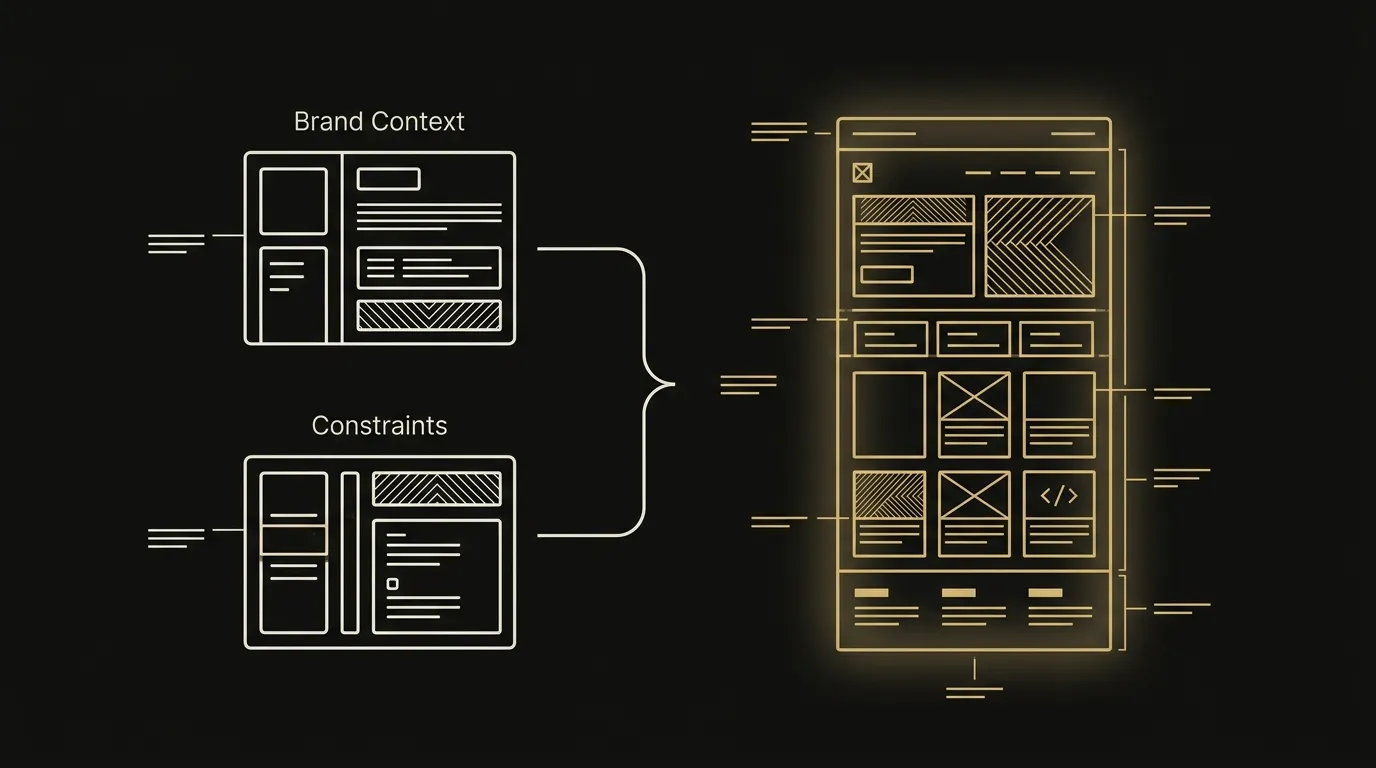
Give ChatGPT a short brief it can reuse across every email, built from four elements.
- Tone adjectives: Pick two or three words on the formal-to-casual spectrum, like “direct, warm, no fluff” or “professional, concise, a little dry.”
- Banned words and phrases: List the corporate filler you never want to see, things like “circle back,” “in today’s fast-paced world,” or “I hope this email finds you well.”
- Sentence length: Tell it whether you want short, punchy lines or fuller explanatory sentences, and ask it to mix the two rather than default to uniform medium-length sentences.
- Real writing samples: Paste two or three of your own past emails into the chat and ask ChatGPT to match that style specifically, not just the tone you described.
The writing samples matter more than the adjectives.
Adjectives like “friendly” or “professional” are vague enough that ChatGPT fills in its own interpretation, which is usually generic.
Real samples give it exact sentence rhythm, punctuation habits, and word choices to copy, so the output actually reads like you wrote it.
Colors, formatting, and structure cues
Structure instructions matter as much as tone instructions, because a wall of unbroken text reads as generic no matter how good the sentences are.
Tell ChatGPT explicitly whether you want short paragraphs, a bulleted list of key points, or a mix of both, since it will default to dense paragraphs otherwise.
Ask for exactly one clear call to action per email; when you don’t specify, ChatGPT sometimes stacks two or three asks, which dilutes response rates.
Request a skimmable structure: short opening line, one or two supporting points, then the CTA, so a recipient scanning on their phone gets the point in five seconds.
If you’re asking ChatGPT to draft the HTML itself rather than just the copy, specify your brand colors, font choices, and button styling directly in the prompt.
Left unspecified, ChatGPT’s HTML output defaults to plain black text and blue links, which is exactly the generic look that makes a send feel like a step backward for the brand rather than a step forward.
That’s also where most people find ChatGPT’s limits: it can write the words and describe a layout, but turning brand rules into a dark-mode-safe, production-ready template is a different task entirely. For a closer look at where AI-written HTML holds up and where it doesn’t, see our breakdown of AI’s ability to code an HTML email.
Build a Reusable Email Project in ChatGPT
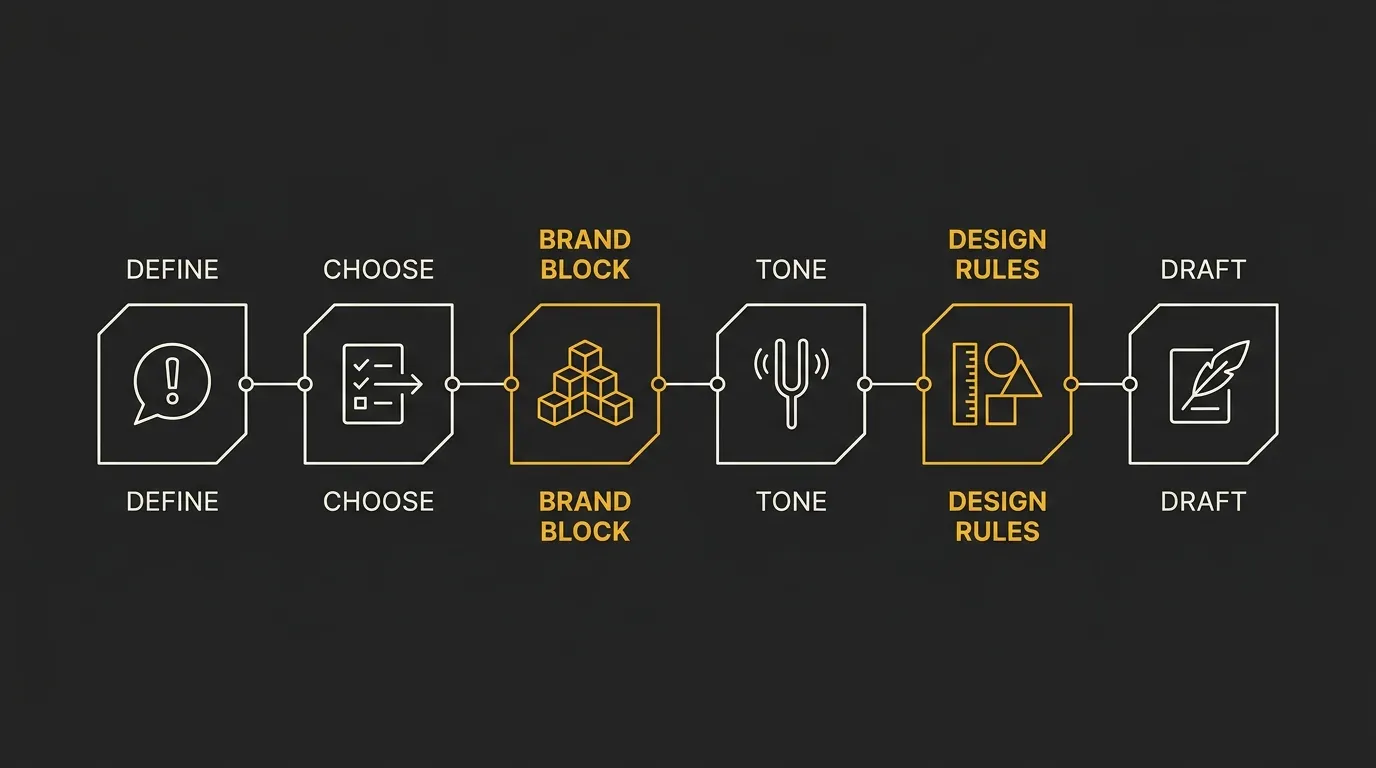
A reusable email project in ChatGPT is a saved setup, custom instructions plus a stored tone profile, that carries your role, audience, and rules into every new chat automatically.
Once it’s built, you stop re-explaining who you are and how you write, and you start every email a few steps ahead.
This is the difference between using ChatGPT for one email and using it as a standing part of how you communicate. The setup takes maybe 20 minutes once. It pays back that time on every send after.
Setting up custom instructions and a system prompt
ChatGPT lets you store standing context two ways: Custom Instructions (Settings > Personalization > Custom Instructions) for anything you do, or a Project (left sidebar > Projects) if email writing is one of several distinct workflows you run.
Custom Instructions apply globally across every new chat, which works well if most of your ChatGPT use is email-related.
A Project is better if you also use ChatGPT for other work and don’t want your email rules bleeding into unrelated prompts.
Either way, the content you paste in is the same. Fill it with:
- Your role and business: what you do, who you sell to, what your emails are usually for (updates, follow-ups, sales, support).
- Default audience: who reads most of your emails and what they already know, so ChatGPT stops over-explaining basics.
- Tone defaults: formal, casual, warm, direct, whatever matches most of your sends.
- Formatting defaults: preferred email length, whether you use bullet points, how you typically open and close.
- Standing constraints: never invent client names, never promise dates you haven’t confirmed, always include one clear call to action.
Once this is saved, every new chat in that Project (or every chat at all, with Custom Instructions) starts already knowing this context.
You still write a specific prompt per email, per the four-part formula covered earlier, but you’re no longer rebuilding the background from scratch each time.
Creating a tone-of-voice profile
A tone-of-voice profile is a short reference document that defines exactly how your writing sounds, so ChatGPT can match it instead of guessing.
It’s different from the general tone defaults above: this is a dedicated file you paste in at the start of a session, or attach to a Project, whenever tone precision actually matters for that send.
Build it once with these components:
- Three to five traits: describe your voice in adjectives a stranger would recognize (direct, warm, technical, brief), not vague ones like “professional.”
- Banned words and phrases: the corporate filler you never use, “reach out,” “circle back,” “I hope this email finds you well,” anything that doesn’t sound like you.
- Signature phrases: two or three lines you actually say often, so ChatGPT can echo your real patterns instead of inventing new ones.
- Opening and closing patterns: your default greeting and sign-off, plus any variations you use for different relationships (cold contact versus existing client).
- Two or three real email samples: short, representative examples ChatGPT can pattern-match against directly. This does more work than any adjective list.
Paste this profile into a Project’s instructions field once, or keep it in a separate document you paste at the top of any new chat.
The result is that draft one starts sounding like you, instead of draft three after two rounds of edits.
If you send in HTML rather than plain text, matching tone is only half the job. The template itself, fonts, spacing, dark-mode rendering, still needs to hold up once it lands in an inbox, which is a separate problem from what ChatGPT’s text output can solve. For more on where that line sits, see how far AI can take you toward a finished HTML email.
Running evals to keep quality consistent
An eval, in this context, is a short checklist you score every draft against before sending, so quality doesn’t drift as you produce more emails, faster.
Without one, a batch of ten AI-assisted emails from a busy week will vary more than you’d like. One eval catches that before it reaches an inbox.
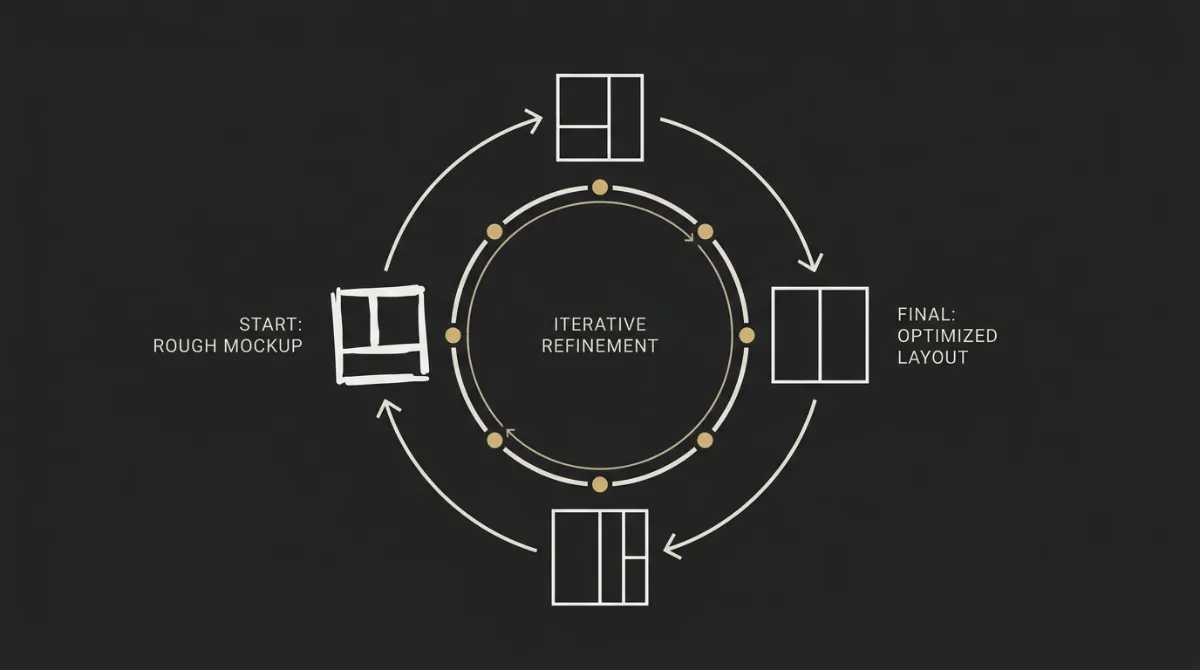
Build a checklist of five or six yes/no questions and run every draft through it:
- Does this sound like my voice, not a generic assistant?
- Is there exactly one call to action?
- Are all names, dates, and figures ones I actually confirmed?
- Is the length right for this type of email?
- Would I send this without editing it?
- Does the subject line match what the body actually says?
When a draft fails a question, don’t just fix that line yourself. Reprompt ChatGPT directly: “This doesn’t sound like my voice, it’s too formal, revise using the tone profile” or “There are two CTAs here, cut it to one.” Feeding the failure back into the same chat, rather than manually rewriting, keeps the model calibrated for the next email in that session.
Over time, the checklist itself becomes the fastest sanity check you have. Running it takes under a minute and saves the slower cost of a stiff, off-brand email going out under your name.
Writing Subject Lines with ChatGPT
Ask ChatGPT for 10 subject line options in one prompt, then pick the one that matches how you actually talk to this recipient.
A useful prompt looks like this: “Write 10 subject lines for this email, mixing curiosity, direct, and benefit-driven styles. Keep each under 50 characters.” Paste your draft email above the prompt so ChatGPT pulls from the real content instead of guessing at the topic.
Once you have the list, filter it against a few practical rules:
- Keep it under 50 characters so it doesn’t get cut off on mobile inboxes
- State the topic clearly, don’t make the reader guess what the email is about
- Lead with an action verb (“Review,” “Confirm,” “Grab”) to prompt a response
- Use square brackets for priority flags, like [Reminder] or [Action Required], when the email needs a specific action
For the deeper mechanics of how ChatGPT and other AI tools construct email markup, see our guide on whether AI can write HTML email.
None of this replaces judgment. The clearest, most clever subject line ChatGPT generates still has to sound like something you’d actually send to this specific person, so read the shortlist once more with the relationship in mind before you choose.
Email Types ChatGPT Handles Well
ChatGPT is strongest on structured, repeatable business emails where the message logic stays the same and only the details change. Cold outreach, reminders, onboarding notes, and recap emails all fall into that category, and each needs a slightly different prompt focus and tone to land right.
The table below gives a starting point for each type: what to focus the prompt on, what tone to request, and the one thing to double-check before you send.
| Email Type | Best Prompt Focus | Tone to Request | Watch For |
|---|---|---|---|
| Cold outreach | Give the recipient’s role, one specific reason you’re reaching out, and a single clear ask | Confident, brief, no flattery | Cut generic praise lines; keep it under 120 words |
| Follow-up / reminder | Reference the prior email’s date and topic, restate the one open item | Light, no guilt-tripping | Keep it short, and add the link or attachment again |
| Onboarding / welcome | List the 2-3 next steps the recipient needs to take, in order | Warm, reassuring, plain-spoken | Don’t bury the first action inside a long paragraph |
| Re-engagement | Note how long it’s been and offer one specific reason to come back | Casual, no guilt, low pressure | Avoid sounding like a mass blast; keep it personal |
| Price increase announcement | State the new price, the effective date, and one line on why | Confident, matter-of-fact | Stay confident, not apologetic; don’t over-explain the reason |
| Meeting or call confirmation | Include date, time, time zone, and the meeting link or dial-in | Neutral, efficient | Double-check the time zone conversion before sending |
| Session or project recap | Give it the raw notes or bullet points from the call, ask for a decisions-and-next-steps summary | Clear, organized, no fluff | Verify names and action-item owners against your own notes |
The pattern across every row: the more specific the raw material you feed ChatGPT, the less editing the message needs afterward. A vague prompt produces a vague email regardless of the type.
For emails where design matters as much as wording, like a welcome message or a re-engagement send meant to sit in an inbox next to your ESP’s default templates, a written draft is only half the job. Once the copy is right, it still has to become a formatted, brand-tuned email, which is where a tool like EmailTemple’s template studio picks up where ChatGPT leaves off.
When Not to Use ChatGPT for Emails
ChatGPT stops being useful the moment a message needs judgment, discretion, or verified facts it can’t check.
Four situations call for you to write the message yourself, or at least take full control of the final pass:
- Sensitive data: never paste client names, account numbers, health details, or contract terms into a chat window. Use placeholders like [Client Name] or [Account #] and swap in the real information after you copy the draft out.
- Emotionally loaded messages: apologies, layoffs, price increases, and complaint responses need your actual voice and judgment, not a smoothed-over AI approximation of empathy.
- Anything unpersonalized: a draft that goes out exactly as generated reads generic fast, recipients recognize the rhythm of AI phrasing, so always adjust specific details before you hit send.
- Unverified claims: fact-check every name, date, number, and product feature ChatGPT includes. It will state details confidently even when it’s guessing.
There’s also a hard technical limit worth knowing before you build a workflow around it.
ChatGPT writes email copy well, but the HTML it generates for a production send is a different problem entirely, and it routinely breaks in Outlook.
One controlled test of AI-generated email HTML found that 8 of 9 outputs across major chat models had at least one Outlook rendering failure, from squished tables to fonts silently falling back to Times New Roman.
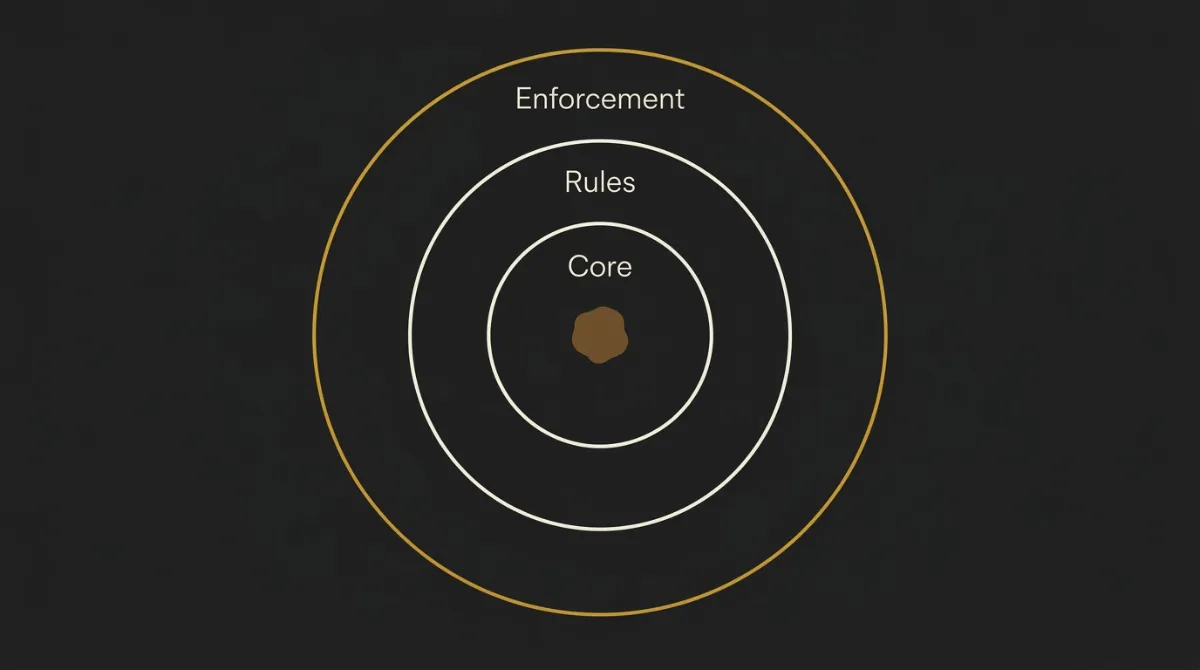
That’s the split worth remembering: ChatGPT is a message and information tool, not a design tool, so use it to get the wording right and hand the actual template build to something built for production email design rather than trusting a generic prompt to code around Outlook’s quirks.
From Draft to a Send-Ready Branded Email
If you send emails once in a while, the quick prompt formula from earlier is all you need: purpose, context, key points, tone.
If you’re sending every week, the reusable project setup does the heavier lifting, since the tone profile and evals catch drift before a draft ever hits your business inbox.
Either way, ChatGPT stops at the draft.
The copy comes back clean, but it’s still plain text sitting in a chat window, not an email a subscriber will actually see rendered.
Turning that draft into something that looks like your brand is a separate job: building a layout that holds up across Gmail, Outlook, and Apple Mail, setting every background color twice so dark mode doesn’t invert your design, and structuring the container so it shrinks to fit a phone screen without a horizontal scrollbar.
That’s the part ChatGPT can’t finish for you, and it’s the part that makes most self-sent emails look like a step down from the brand around them.
EmailTemple picks up right where the draft ends: describe the email you want in plain language, and the studio returns a typographically tuned, dark-mode-safe template, ready to export straight to your ESP.
No template browsing, no drag-and-drop builder, no waiting on a contractor.
Generate your branded template for free.
Frequently Asked Questions
How do I make ChatGPT write emails in my own tone of voice?
Paste two or three real emails you have already sent, along with a short written description of your tone (formal or casual, short or long sentences, how you open and close), and ask ChatGPT to match that pattern.
This gives the model actual output to copy instead of guessing at a generic professional tone.
Save that description as a standing instruction so every new draft starts from the same voice profile instead of you re-explaining it each time.
Can ChatGPT write a whole email sequence at once?
Yes, ChatGPT can draft an entire sequence, welcome series, cart nudge, follow-up chain, in a single prompt if you describe the goal of each email and how many days apart they should send.
Ask for the full flow at once so the emails build on each other logically rather than repeating the same point.
Still read every email individually before sending: a sequence multiplies any tone slip or factual error across every message in the chain.
Is the free version of ChatGPT good enough for writing emails?
Yes, the free version handles most everyday email drafting, follow-ups, replies, and short business notes, without needing a paid plan.
Paid tiers add speed and larger context windows, which help mainly when you are pasting long threads or multiple reference emails into one prompt.
For a single email or a short sequence, the free version’s output quality is not the bottleneck.
Why do my ChatGPT emails still sound generic?
Generic output almost always means the prompt skipped a voice sample, a rules list, or a real example, so the model fell back on its default neutral register.
Add two things to fix it: a short set of writing rules (banned phrases, sentence length, formatting habits) and one or two real emails to imitate.
Without those, ChatGPT has nothing brand-specific to anchor to, so it defaults to the same safe, corporate phrasing every time.
Can ChatGPT write the HTML for a marketing email?
ChatGPT can produce HTML for a marketing email, but that code frequently breaks once it hits Outlook’s rendering engine, which does not support standard CSS the way browsers do.
Layouts collapse, spacing shifts, and dark mode can invert colors in ways that were never tested.
Use ChatGPT for the copy, subject line, and structure, then hand the actual markup to a tool built for email-safe HTML rather than treating the model’s code as production-ready.
For that reason, production-ready HTML email design usually needs a dedicated process, not a general-purpose chat model.
How do I stop ChatGPT from inventing details in an email?
You cannot fully stop it, ChatGPT will occasionally hallucinate names, dates, or numbers that sound plausible but are wrong, so fact-checking is a required step, not an optional one.
Before sending, manually verify every proper noun, date, price, and statistic against your actual records.
Treat the first draft as a starting structure for your message, not a source of truth for its details.